
Alternative Method to Log Out of RemoteApp Using Keyboard Shortcut
Why Use the Keyboard Shortcut?
Improperly closing the RemoteApp window without correctly logging out can leave your session “stuck,” which might prevent re-login or cause other users to accidentally take over your session. Using the logoff menu guarantees your session ends cleanly and securely, reducing these risks.
Step 1: Open the RemoteApp Session
Make sure your RemoteApp window is currently active and in focus on your desktop. You need to be inside the session—not on your local desktop or in another application.
Step 2: Use the Keyboard Shortcut
On your keyboard, press and hold Ctrl + Alt + End at the same time.
Callout:
- On some laptops, you may also need to hold the Fn (Function) key together with the other keys, or access the End key via a function shortcut. Consult your laptop’s documentation if needed.
Step 3: Select “Sign Out” or “Change a Password”
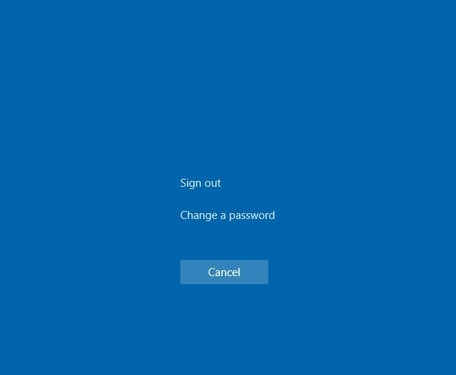
A Windows Security screen will appear. You have two main options:
- Click Sign out to cleanly end your RemoteApp session.
- Or, if required, you can select Change a password before signing out.
Callout:
Best practice is to always use Sign out instead of just closing the window for a fresh, error-free login next time.
Step 4: Wait for Confirmation
Wait until the RemoteApp session window closes and any confirmation appears. You’ll return to your local desktop after logoff. If you need to log in again, you may now do so without conflict.
Troubleshooting & Tips
- If Ctrl + Alt + End does not trigger the logoff screen, check that your RemoteApp window is in focus.
- On some devices, using the On-Screen Keyboard via Windows Accessibility features can help input the shortcut.