
Applying an Unapplied Payment
Occasionally, payments are received and recorded in FlexiBake but left unapplied because an invoice wasn’t ready, or the payment was a deposit. This guide helps you locate those unapplied amounts and assign them to the appropriate invoices at any time
Warning: Only apply unapplied payments when you are certain of the corresponding invoices to avoid reconciliation issues later. Double-check customer and invoice details before finalizing changes.
Instructions
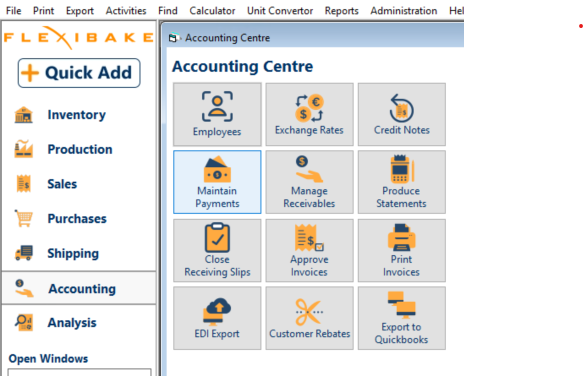
- Go to the Accounting Centre and click Maintain Payments.
- Use the Filter By options at the top of the screen to quickly find the customer or payment record you wish to update.
- Double-click the payment record you want to work with.
- To have FlexiBake automatically apply the payment to the oldest outstanding invoice(s) for that customer, check the Apply Payment to Invoices Automatically box (bottom left corner).
- To manually select invoices, click in the Paid column beside each invoice you wish to apply the payment to.
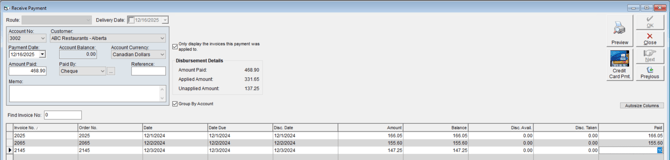
- Adjust the amount applied as needed if the payment covers multiple invoices or is only partially used.
- Confirm all entries, then click OK to save your changes.
Tip: Any remaining balance not applied to invoices will stay as an unapplied credit on the customer’s account for future use
Verifying the Application
- After applying, you can print or preview payment and invoice status for your records.
- If a payment was erroneously applied, you can edit the payment record and remove it from the invoice(s) as needed before reapplying.