
By default, FlexiBake assumes that a 1 day lead time means that an item is produced the day before it is delivered. If your operation produces early in the morning for delivery in the afternoon, or if you offer same-day ordering and delivery, then you'll want to enable the Assume Production and Delivery Dates Are the Same setting. This causes the delivery date to count as a valid production date, so a one-day lead time is produced the same day. This setting effectively subtracts 1 day from all lead times.
Please Note: Products with a 0 day lead time will not populate Enter Production. Instead, you would set the product lead time to 1 and enable this setting.
In FlexiBake
In FlexiBake, the Assume Production and Delivery Dates Are the Same setting will affect a few different pieces. The main difference is that product production dates will be a day later; In Enter Production, items will populate one day closer to the delivery date when populating from Sales Orders, and in Schedule Production the Date Required will also shifted one day closer to the delivery date.
Reports in the Production Centre are similarly affected. By default, the reports that populate date from sales orders will consider sales orders delivering the day after the date you have selected (so production is assumed to happen the day before delivery). When the setting is enabled, the reports will populate sales order data for order delivering on the selected date (so production is assumed to happen same-day).
To turn on, or off Same Day Delivery and Production for FlexiBake, follow these steps:
- Log into FlexiBake under an Administrator Account, open the Administration Dropdown and select FlexiBake Preferences.

- Navigate to the Production Tab, and find the checkbox and setting Assume production and delivery dates are the same.
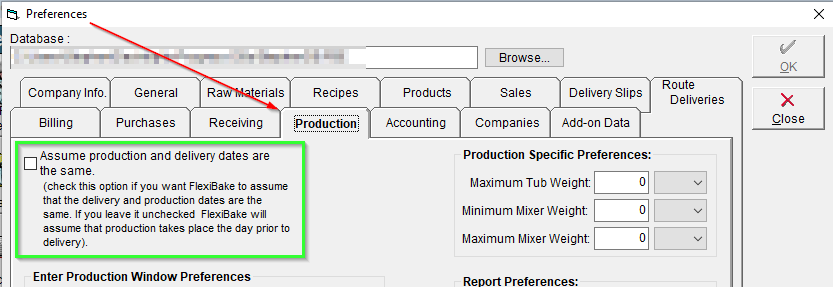
A small description of this settings changes may be found below the checkbox. - Press OK to save your changes and reflect the updated Lead Time Calculation.
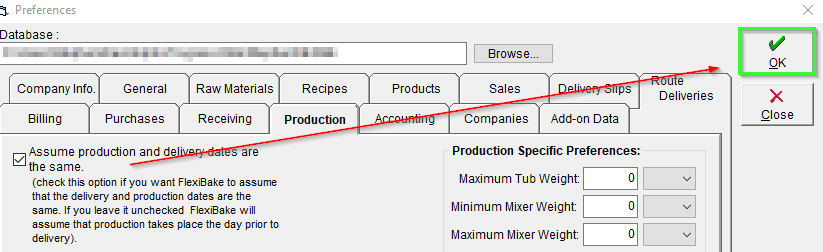
If Production Tools were already open when this change was made, please close then and re-open or restart FlexiBake.
This setting is quite important for FlexiBake to ensure the proper Products appear on the right Production Date, see our related article on Product Lead Times for more information.
In the Online Ordering Portal
If you've enabled the Assume Production and Delivery Dates Are the Same setting in FlexiBake, you may also wish to enable the sister preference Same Production and Delivery Date on the Online Ordering portal.
How This Setting Affects Ordering
When Same Production and Delivery Date is enabled, the portal treats product lead times the same way FlexiBake does when the matching preference is enabled. A product with a 1 day lead time can be ordered up until the cutoff time on the delivery date.
This setting also affects portal cutoff times. When Same Production and Delivery Date is enabled, a cutoff with a 1 day lead time means orders can be placed up until that cutoff time on the selected delivery date.
When product and cutoff lead times are different, the longest one wins. So if a product lead time is longer, then that product will stop being to be ordered before the portal cutoff time stops ordering. If the portal lead time is longer then the product will be able to be ordered up until the portal cutoff time.
Warning: It highly recommended that you do not enable this setting in the portal unless the matching setting is already enabled in FlexiBake. If the settings do not match, users may become confused about Online Ordering lead times and cutoff behavior.
Enable the Setting in the Online Ordering Portal
Step 1
Open the admin page for your Online Ordering portal by adding /setup to the end of your portal URL.
Note: For example, if your portal URL is example.flexibakeonline.com, your admin page URL will be example.flexibakeonline.com/setup.
Step 2
Sign in using your admin page credentials.
Note: If you do not have admin page credentials set up or cannot remember your email/password, contact support@flexibake.com.
Step 3
Click on the button in the Edit column for the portal in the list.
Step 4
Scroll to the Additional Settings section, then select the Same Production and Delivery Date checkbox.
Step 5
(Optional) Review any existing cutoff times.
Tip: If you already have cutoff times defined, you may want to increase the lead days by one to keep your current cutoff times unchanged.