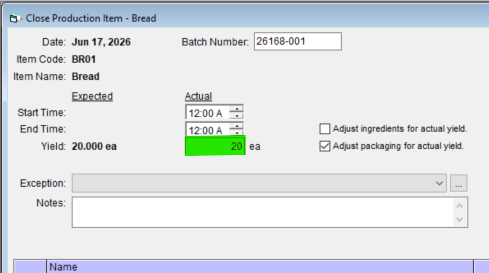
Close Schedule Production Item Overview
What Happens When You Close a Production Item?
Closing a scheduled production item records the actual quantities consumed and produced. Inventory levels for raw materials and packaging are reduced based on your entries, ensuring your system reflects real usage and outputs.
Warning: Ensure your entries for actual yield and ingredient/packaging usage are accurate before finalizing, as this impacts your inventory records.
Note: Ingredient and packaging quantities are consumed from the warehouse or location associated with the current production batch during scheduling. This ensures that inventory is depleted from the correct facility.
Closing a Scheduled Production Item
Locating and Opening the Production Close Window
Step 1
Use the Date Picker to find the Production Date with your scheduled items. Find the scheduled recipe/item you need to close in the grid at the bottom of the Production Centre screen.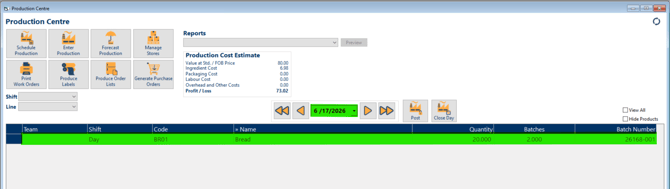
Step 2
Double click on the production item in the grid to open the Close Production Item window.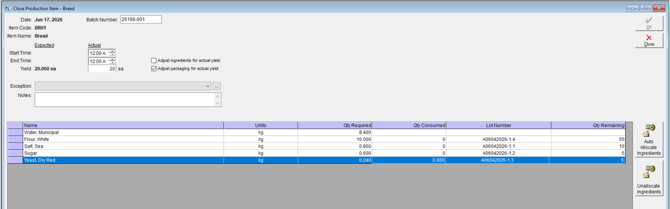
Adjust for Actual Yield
Step 3
If the actual yield diverges from the original plan, you can check Adjust Ingredients for Actual Yield and/or Adjust Packaging for Actual Yield. These options update your inventory depletion to match the yield produced, rather than the scheduled quantity.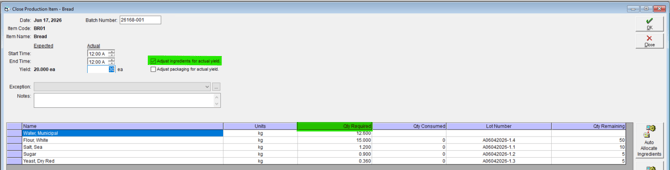
Tip: Use these options if actual production was higher or lower than planned, to keep ingredient and packaging records correct. The required quantities of the Production Item will scale based on the actual yield and related checkboxes.
Ingredient & Packaging Assignment
Step 4
Choose how ingredient and packaging consumption are assigned:
- Select Auto-Allocate Ingredients to automatically issue materials on a first-in-first-out basis.
- Or manually assign quantities in the Qty Consumed columns for greater control.
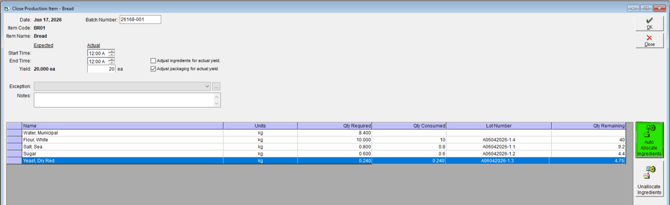
Close Production Item
Step 5
Click OK to save. If all require ingredients/sub-recipes have been accounted for the top of the window will reflect Production Completed.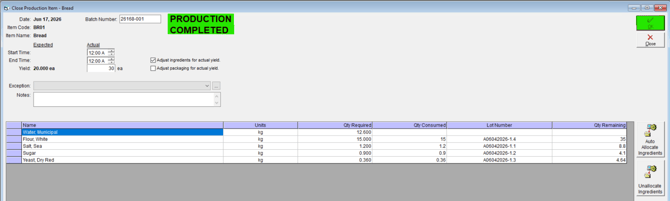
Additional Options When Closing Production
Enter Batch Number, Actual Start, End, and Yield Values
Step 1
In the Close Production Item window, make adjustments to the items Batch or Lot Number.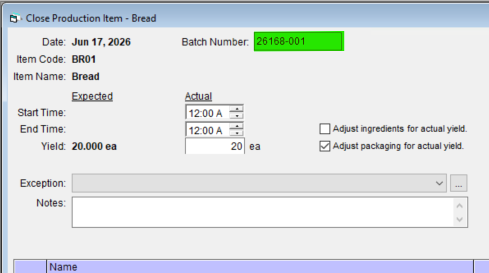
Step 2
Enter the Actual Start Time and Actual End Time using the arrow controls or by typing the times directly.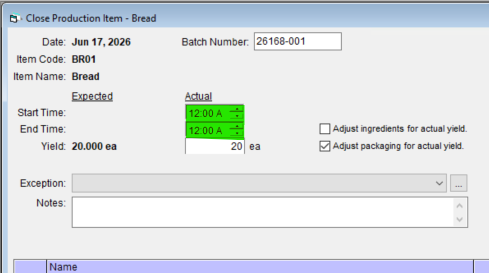
Step 3
Enter the value for Actual Yield to reflect real production output. If your actual yield is different from what was scheduled, readjustments will be necessary.