
Everyone appreciates a personal touch, especially when receiving an email. You can customize the bodies of the emails used to send out statements, consolidated statements and invoices in bulk to add important information, highlight new products or promotions, convey a seasonal greeting, or just to add your company's own branding and flair.
This tutorial will guide you through the simple steps of setting up and customizing your email templates for invoices, statements, and consolidated statements. Learn how to use a variety of placeholders—including fields for invoice details, customer information, and your company's data—to create dynamic and personalized email subjects and bodies that automatically populate with the correct information upon sending.
This tutorial requires signing into FlexiBake as a user with Administrator permissions
Step 1
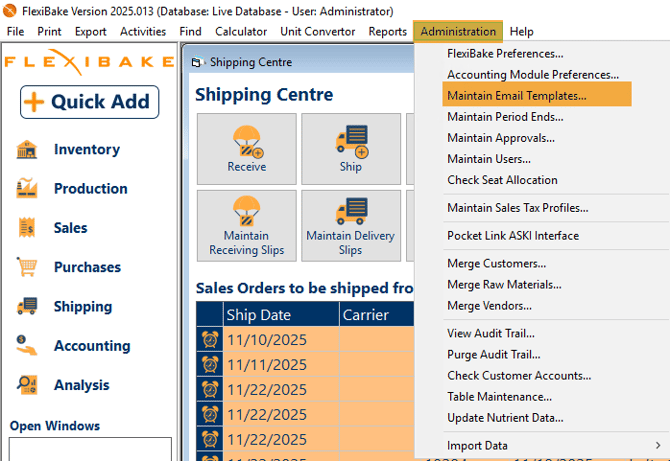
In the upper menu bar, open the Administration menu and select Maintain Email Templates.
Step 2
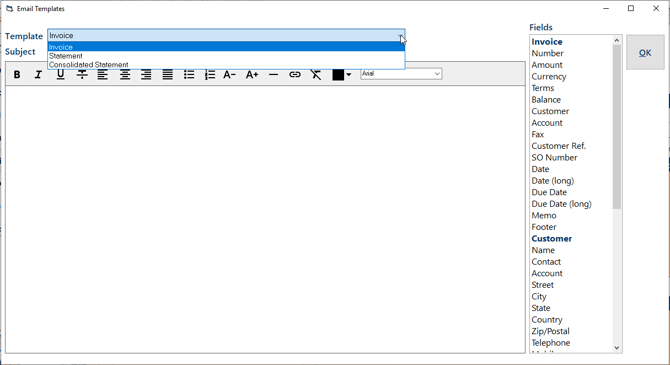
Select the type of template you would like to create/edit: Invoice, Statement or Consolidated Statement
Step 3
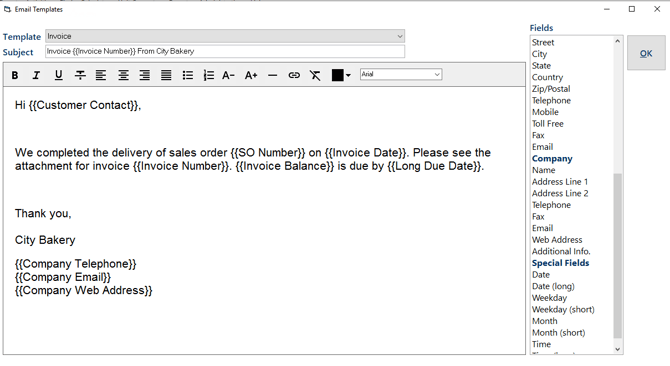
Add your desired subject and email body. You can double-click on or drag-and-drop from the placeholders list on the right to insert fields that will populate information specific to the invoice, statement, customer, your company or the time/date. These placeholders can be added to both the email body and the subject line
Invoice Placeholders
- Number - Populates the invoice number for the invoice being sent
- Amount - The value of the invoice
- Currency - The currency code for the currency the invoice is charging in
- Terms - Displays the name of the payment terms of the invoice
- Balance - The outstanding amount due on the invoice at time of sending
- Customer - The customer name that the invoice belongs to
- Account - The customer account number that the invoice belongs to
- Fax - Customer fax number XXX
- Customer Ref - Populates the customer reference from the sales order that appears on the invoice.
- Date - Populates the invoice date (Delivery Date for RDS, generally the shipment date for DS) in short format. The short format is pulled from your cloud seat. If you need change this format, please see our guide here
- Date (long) - Populates the invoice date in long format, for example "October 23, 2025"
- Due Date - The date that payment is due on the invoice according to the payment terms in short date format.
- Due Date (long) - The date that payment is due on the invoice in long format.
- Memo - Populates the Default Invoice Memo from the Billing tab of the customer.
- Footer - Populates the invoice footer message set in the Billing tab of FlexiBake Preferences
Statement Placeholders
- Customer/Address - Populates the Customer name and billing address.
- Date - Populates the Statement Date in short format
- Date (Long) - Populates the Statement Date in long format
- Date From - Populates the starting date of the statement range in short format
- Date From (Long) - Populates the starting date of the statement range in long format
- Date To - Populates the ending date of the statement range in short format
- Date To (Long) - Populates the ending date of the statement range in long format
- Amount Due - The balance due on this statement
- Current - The amount of the customer's balance that is current. This includes all unapplied credits and payments, and invoices who have not yet come due
The 30/60/90/Over 90 Days fields represent the 4 aging periods. If your system is set to use a different aging period, the program will account for this when populating the values. For example, if you use a 45 day aging period, then the 30 Days placeholder will display the total unpaid balance of invoices that are between 1 and 45 days past their due date, and the 60 Day placeholder will populate the value of unpaid invoices between 46 and 90 days past their due date.
- 30 Days - The total unpaid balance of invoices that are within 1 aging period of their due date
- 60 Days - The total unpaid balance of invoices that are over 1 and under 2 aging periods past their due date
- 90 Days - The total unpaid balance of invoices that are over 2 and under 3 aging periods past their due date
- Over 90 - The total unpaid balance of invoices that are over 3 aging periods past their due date
- Account - Populates the customer's account number
- Route - Populates the name of the route the customer is assigned to and their position on it
- Payment Terms - Populates the payment terms assigned to the customer on their Billing tab.
- Telephone - Populates the phone number in the Tel field on the customer profile
- Fax - Populates the phone number in the Fax field on the customer profile
Customer Placeholders
- Name - The customer name
- Contact - Populates the phone number in the Tel field on the customer profile
- Account - The customer account number
- Street - Populates the Street section of the customer's Billing Address
- City - Populates the City section of the customer's Billing Address
- State - Populates the State/Province section of the customer's Billing Address
- Country - Populates the Country section of the customer's Billing Address
- ZIP/Postal - Populates the ZIP/Postal section of the customer's Billing Address
- Telephone - Populates the phone number in the Tel field on the customer profile
- Mobile - Populates the phone number in the Mobile field on the customer profile
- Toll Free - Populates the phone number in the Toll Free field on the customer profile
- Fax - Populates the phone number in the Fax field on the customer profile
- Email - Populates the email address in the Email field on the customer profile
Company Placeholders
- Name - Populates the name of your company found in the Company Info tab of FlexiBake preferences
- Addy 1 - Populates the Address Line 1 found in the Company Info tab of FlexiBake preferences
- Addy 2 - Populates the Address Line 2 found in the Company Info tab of FlexiBake preferences
- Tel - Populates the name of your company found in the Company Info tab of FlexiBake preferences
- Fax - Populates the name of your company found in the Company Info tab of FlexiBake preferences
- Email - Populates the name of your company found in the Company Info tab of FlexiBake preferences
- Web - Populates the name of your company found in the Company Info tab of FlexiBake preferences
- Additional Info - Populates the name of your company found in the Company Info tab of FlexiBake preferences
Special Placeholders
- Date - Populates the current date at time of printing in short format
- Date (long) - Populates the current date at time of printing in long format
- Weekday - Populates the current day of the week at time of printing.
- Weekday (short) - Populates the current day of the week at time of printing in short (3 letter) format. For example, Thursday will be 'Thu'
- Month - Populates the current month at time of printing.
- Month (short) - Populates the current month at time of printing in short (3 letter) format. For example, January will be 'Jan'
- Time - Populates the current time in HH:MM AM/PM format. This option does not accept 24 hour format.
- Time (long) - Populates the current time in HH:MM:SS format. This option accepts both 12 hour and 24 hour formats, as set in the region settings for your cloud seat. For more information on changing date and time formats in the cloud, please see our guide here.
Step 4
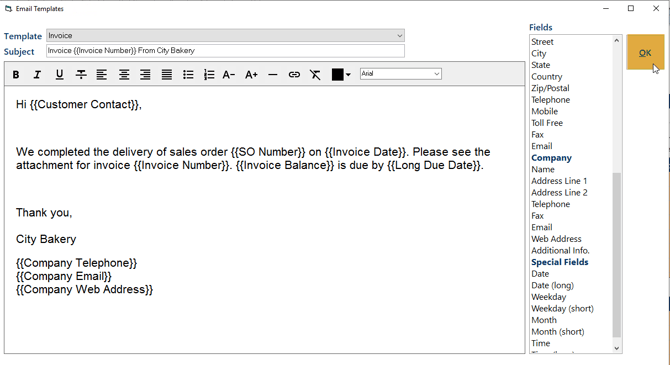
Once you have written your email template, click OK to save it.
Please Note: The email bodies are used when emailing statements through the Print button in Maintain Statements, and for Invoices send via the Print Buttons in Print Route Docs or Print Invoices. These templates will not apply when sending statements or invoices from the preview.