
What should I do if I am not receiving the MFA verification emails?
If you are trying to log in but haven't received your verification code, there are two things to check first.
1. Verify that the recovery email where the MFA code is being sent is correct.
The email address tied to your account will be displayed directly on the screen when you log in at cloud.flexibake.com.
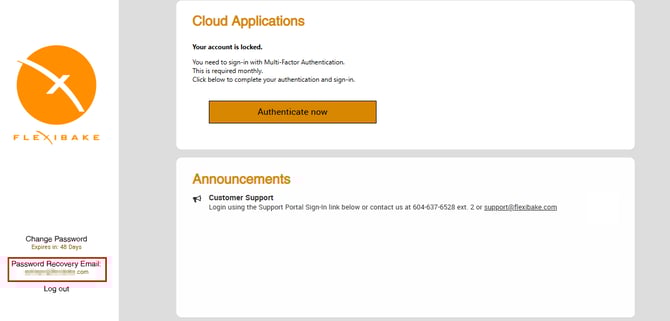
Need to change this email?
You can update your users' email addresses at any time by following the steps in this help article: Update Linked Email For Multi-Factor Authentication and Password Recovery.
2. Verify that the email with your MFA code is not getting rejected by your inbox
The email may have been filtered into your spam or junk folder.
To ensure our codes always reach your inbox, please add notification@mycloudmfa.com to your email provider's safe senders list or whitelist.
How to Whitelist FlexiBake MFA Emails
To ensure you always receive your Multi-Factor Authentication codes without delay, we highly recommend adding notification@mycloudmfa.com to your email provider's "Safe Senders" list or whitelist.
Examples for how to whitelist with frequently used email providers:
For Gmail Users
- Open Gmail on your computer.
- Click the Gear icon in the top right corner, then click See all settings.
- Navigate to the Filters and Blocked Addresses tab at the top.
- Click on Create a new filter.
- In the From field, type or paste: notification@mycloudmfa.com
- Click the Create filter button at the bottom of that window.
- Check the box next to Never send it to Spam.
- Click Create filter one last time to save your changes.
For Microsoft Outlook Users (Web or New Desktop App)
- Open Outlook and click the Gear icon (Settings) in the top right corner.
- In the settings menu, go to Mail, then select Junk email.
- Look for the Safe senders and domains section and click + Add.
- Type or paste: notification@mycloudmfa.com
- Press Enter on your keyboard, and then click Save at the bottom of the screen.
For Apple Mail Users
The easiest way to whitelist an email address in Apple Mail is to add the sender to your contacts.
- Open an email from notification@mycloudmfa.com (if you have one in your Junk folder).
- Click on the sender's email address at the top of the email.
- Select Add to Contacts or Add to VIPs.
Can multiple emails be linked to one user for verification?
Can multiple emails be linked to one user for verification? No, it is not possible to link multiple email addresses to a single user profile. However, multiple users can share the same email address to receive their verification codes.
Note: If your team shares a single email inbox for verification, please pay close attention on the 1st of the month to avoid confusion about which code belongs to which user account.
Can we activate the MFA process early if the 1st of the month falls on a weekend?
-
The MFA verification cycle automatically resets on the 1st of each month, and we cannot change this schedule.
-
However, there is no need to worry if you don't work weekends! You can prompt the code to be sent to complete your MFA verification during your first login of the month, whether that is on the 1st, the 3rd, or later.
How do I regain access if I get locked out during the MFA reset?
If you find yourself locked out of your account while trying to complete your MFA verification, our team is here to help. Please reach out to us at support@flexibake.com and include the following details so we can resolve the issue quickly:
- Your FlexiBake Seat Name
- The MFA Email address associated with your Seat Account
Does MFA apply to users with locally installed versions of Flexibake?
No, this Multi-Factor Authentication (MFA) update is specifically for customers using FlexiBake's Cloud version. If your account is hosted locally, these changes do not affect you.