
FlexiBake Cloud Multi-Factor Authentication (MFA): Enabling SMS Delivery of Verification Codes
Learn how to activate SMS delivery for your FlexiBake Cloud MFA security codes to simplify and secure your monthly FlexiBake Cloud login.
Table of Contents
- About FlexiBake Cloud MFA and SMS Delivery
- Supported MFA Code Delivery Methods
- Enabling SMS Delivery During Login
- Error Handling and Troubleshooting
- Completing SMS Enrollment
- Changing or Updating Your SMS Number
- Frequently Asked Questions
About FlexiBake Cloud MFA and SMS Delivery
FlexiBake Cloud MFA (Multi-Factor Authentication) now supports sending your monthly login verification codes via SMS text messages, in addition to your registered email address. This article walks you through enabling SMS delivery the next time you perform your monthly MFA login.
Supported MFA Code Delivery Methods
At the first FlexiBake Cloud login of each month, you will be prompted for a verification code. You may still use your email for MFA verification, or you can now enroll to receive MFA codes via SMS.
*** If you enroll in SMS receivership, you will no longer get an MFA code sent via EMAIL, until the SMS number is cleared at a request sent to the support team.
Step 1: Begin Monthly MFA Process
Users continue to authenticate at the familiar MFA page during the first login each month.
Navigation:
Go to https://cloud.flexibake.com and log in with your FlexiBake cloud credentials.
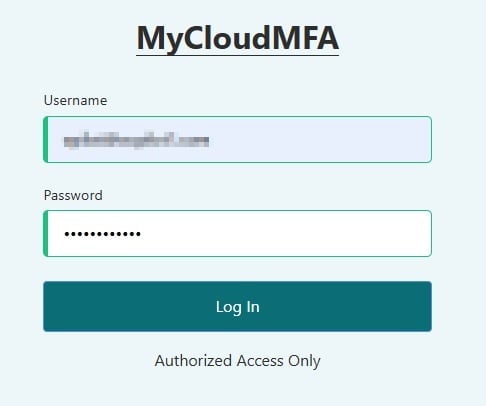
Step 2: Review the “SMS Delivery Available” Prompt
After entering your credentials, you will see a prompt that reads:
“SMS Delivery Available” in addition to the message confirming a verification code was sent to your registered email.
You now have two options:
- To continue using email only: Enter the verification code from your email and click “Verify” to proceed.
- To enable SMS delivery: Enter the verification code from your email, check the “Enable SMS delivery” box, then click “Verify.”
Note: You must always enter the email code the first time, even when enabling SMS delivery.
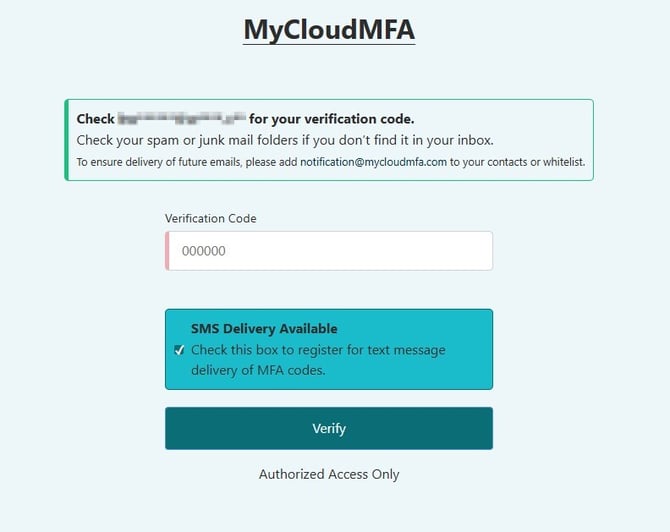
Step 3: If You Skip the Verification Code
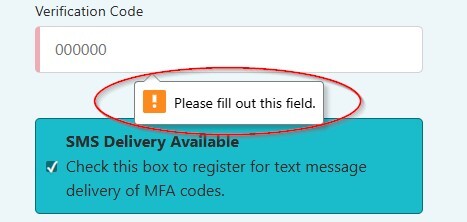
If you check the box for SMS delivery and try to proceed without entering the email verification code, an error appears:
Example Tooltip/Error:
“Please fill out this field.”
This message might vary depending on your browser, but always prompts you to enter your email verification code.
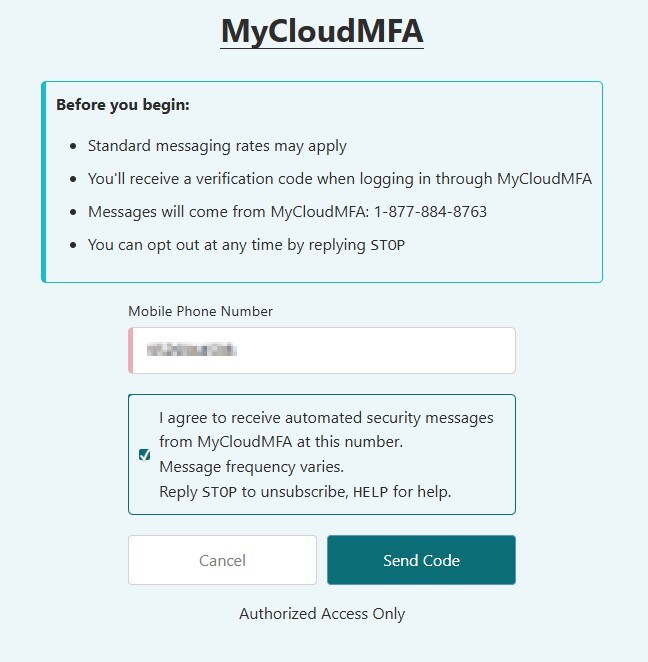
Step 4: SMS Registration Confirmation and Regulatory Notice
If you opt in and enter your email code, you are redirected to a confirmation page with regulatory details (including text origin and opt-out instructions).
You must:
- Enter the mobile number that should receive MFA codes.
- Check the “I agree” box to acknowledge SMS terms.
- Click “Send Code” to finalize registration.
Step 5: Entering Your SMS Verification Code
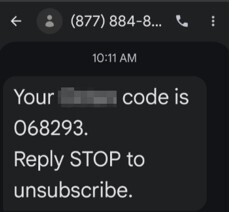
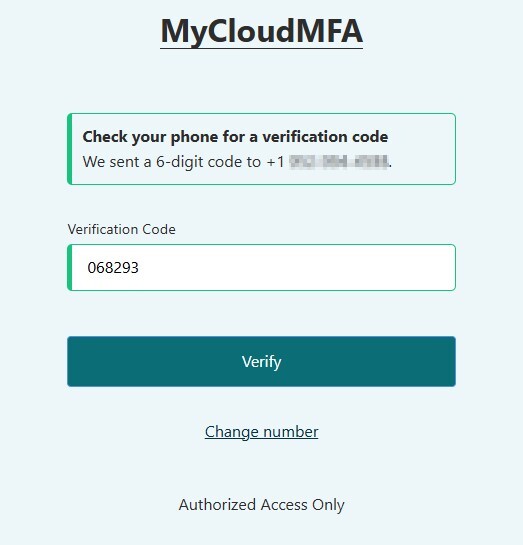
You will receive a code at your entered mobile number. Return to the MFA page and enter this new verification code.
Callout:
The “Change number” option is only available on this initial registration screen—use it if you made a mistake entering your phone number. After setup, this option is not accessible during regular logins.
Step 6: Completing SMS Enrollment & Ongoing MFA Use
Once you submit the SMS verification code, click “Verify”. You are returned to your FlexiBake launch page as normal.
Success Message Example:
“SMS delivery enabled. Future MFA codes will be sent to your mobile device.”
From now on, future MFA codes will be delivered by SMS.
Changing or Updating Your SMS Number
Due to Telephone Consumer Protection Act (TCPA) requirements, neither FlexiBake Cloud provider nor FlexiBake Support can directly update MFA phone numbers. If your SMS number must change:
- Support will use internal tools to clear your existing SMS number.
- After this, the next monthly MFA login will trigger SMS registration, and you can enter your new mobile number.
Frequently Asked Questions
-
Can I receive MFA codes by both email and SMS?
No; once SMS delivery is enabled, all MFA codes are sent to your mobile number. -
What if I lose access to my registered SMS number?
Request Support to clear your MFA number so you can re-register at next login.