
Why This Update Matters
Microsoft’s April 2026 cumulative security update introduced new requirements for RDP file certificates. Unsigned or expired RDP files will trigger security prompts and require additional user actions to enable resource preferences each session. This affects all updated Windows 10 (ESU) and Windows 11 devices.
Warning: Using unsigned or expired RDP files will not prevent access, but users will encounter security prompts and repeated resource selection until a valid signed file is used.
Which Files Are Impacted?
- Files downloaded before June 19, 2026:
- These RDP files have a certificate expiration of July 6, 2026. After this date, files remain secure and functional, but users will see security prompts and must re-select preferences each login — similar to issues first observed in April 2026.
- Files downloaded from RD Web Access (cloud.flexibake.com):
- Always signed by FlexiBake. These remain valid and keep full functionality until January 5, 2027. Signed files allow users to save resources (printers, drives, clipboard) by checking “Remember my choices for remote connections from this publisher.”
User Experience
- Unsigned or Expired RDP Files:
- Users will see security warnings and will lose the ability to save remote access preferences. Preferences must be selected each session.
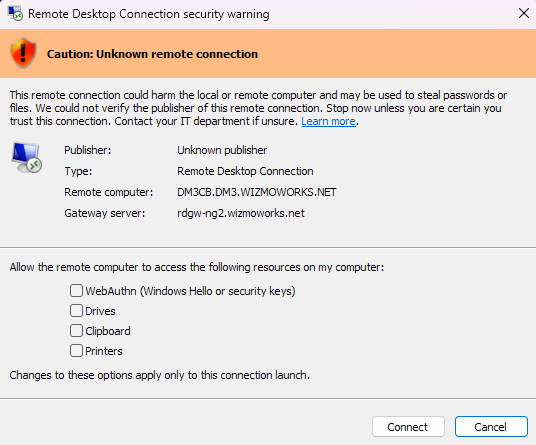
- Users will see security warnings and will lose the ability to save remote access preferences. Preferences must be selected each session.
- Signed RDP Files:
- No additional prompts. Preferences can be saved once by checking the “Remember my choices…” box.
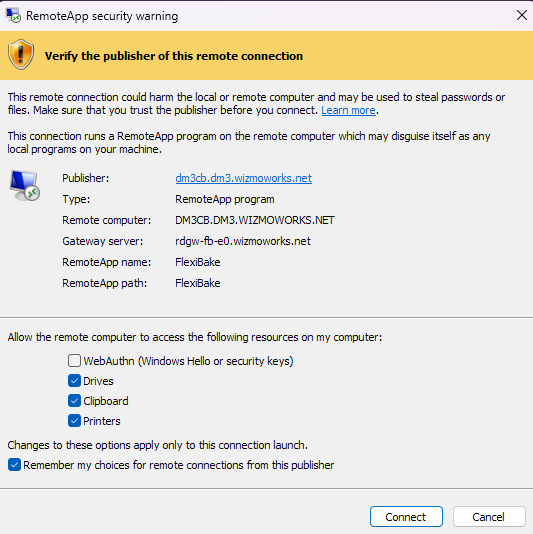
- No additional prompts. Preferences can be saved once by checking the “Remember my choices…” box.
Tip: To minimize disruption, always use the latest signed RDP files from RD Web Access (cloud.flexibake.com)
Recommended Actions
Step 1
Check the source of your RDP file, if you're prompted by a security warning without "remember my choices for remote connections from this publisher", then download a new copy of the RDP file from RD Web Access (cloud.flexibake.com).
Step 2
If distributing RDP files to end users, replace old files with newly signed versions before their certificate expiration.
Step 3
Instruct users to check “Remember my choices for remote connections from this publisher” when first prompted. This will enable persistence of printers, local drives, and clipboard settings.
Note: Devices that have not installed the April 2026 update will not experience these security prompts or resource restrictions until the update is applied.