
Overview
Sequencing a route lets FlexiBake match your route setup to the real delivery order. This helps drivers find delivery slips and invoices more easily, and it improves truck loading by listing products in the order they should be loaded for delivery.
Before You Begin
Route sequencing is completed separately for each Day of Week. If your routes run the same way each day, you may be able to use the Copy From function instead of rebuilding each route manually.
Warning: Before switching to a different Day of Week, click OK to save your changes. Unsaved route sequence changes will be lost.
Open Manage Routes
Step 1
Navigate to the Shipping Centre and click Manage Routes.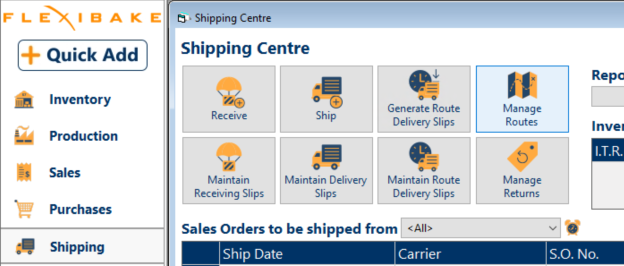
Select the Delivery Period and Day
Step 1
At the top of the screen, select the correct Delivery Period.
Step 2
Select the Day of Week you want to assign customers to.
Note: Route sequencing must be set up for each weekday separately.
Assign Customers to Routes
Step 1
Review the two route areas on the screen:
- Customers not yet assigned for that day appear in the bottom grid.
- Customers already assigned appear in the upper grid under their route names.
Step 2
Drag each customer from the lower area and drop them into the correct route column.
Step 3
Continue dragging customers within the route column to arrange them in the correct delivery order.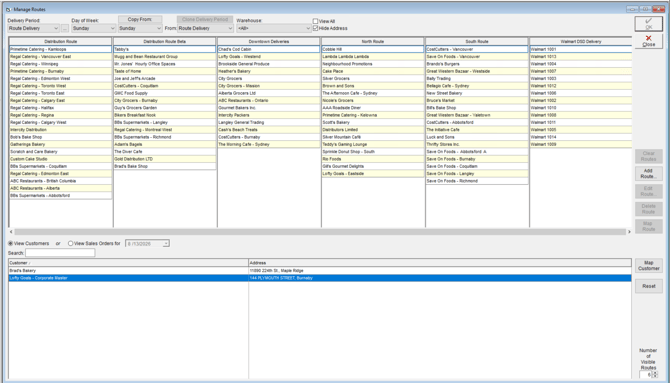
Step 4
If needed, drag a customer to a different route to update their assignment for that day. Repeat as necessary.
Tip: When you drag a customer, a file icon appears under the cursor. This confirms the record is being moved in the route screen.
Warning: Route assignments apply to orders when the order is created. If you assign a customer to a route after orders already exist, those existing orders will not be assigned to the route automatically. You must assign those orders manually.
Step 5
Click OK to save the route assignments and sequence order.
Warning: Avoid having multiple users update Manage Routes at the same time. Route sequencing changes are saved manually, and tools like Copy From can update all routes for a selected day, so overlapping edits may overwrite another user’s changes. Have one user complete and save route updates before another user begins .
When to Use Copy From Instead
Use Copy From to reuse an existing route sequence on another weekday. After setting up one day and saving, select the weekday you want to update, choose the source day in Copy From, and save.
Warning: Keep in mind that Copy From updates all routes for the selected day, not just one route.
Related Route Adjustments
If you need to make a one-time change to a specific order after routes are already set, use the Override Route Sequence process instead of changing the standing route sequence.