
What this setup does
This setup imports your FlexiBake cloud connection into Windows App on your Android device. After the import is complete, you can open the saved connection from the app whenever you need to sign in.
Before you begin
- Confirm you have your cloud username and password available.
- Install Windows App on your Android device before downloading the RDP file.
Note: This article uses the downloaded RDP file method rather than building the connection through a remote resource feed.
Download the RDP
Get the connection file from the FlexiBake cloud portal
Step 1
Open a browser on your Android device and go to cloud.flexibake.com.
Step 2
Sign in with your cloud username and password.
Step 3
Tap the FlexiBake icon to download the RDP file.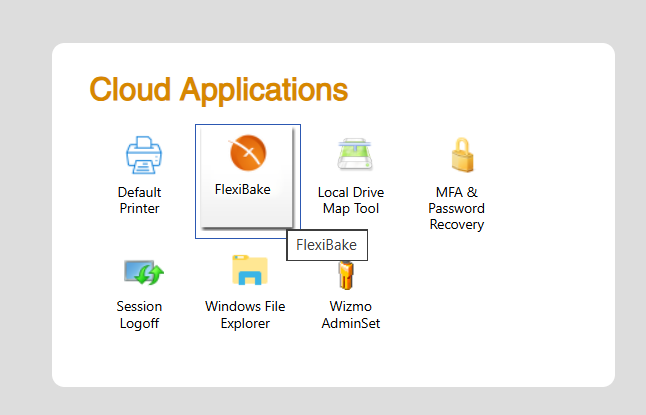
Note: Remember where the file was saved so you can open it in the next section.
Import the RDP
Open the downloaded file to create the connection
Step 1
Open the downloaded RDP file from Recent files or your device’s Downloads folder.
Step 2
Allow Windows App to open the file and import the connection.
Step 3
Enter your cloud username and password if prompted to complete the import.
Step 4
Wait for the connection to be added to the app. After setup, the FlexiBake connection will appear in Windows App.
Sign in After Setup
Open the saved FlexiBake connection
Step 1
Open Windows App.
Step 2
Find the saved FlexiBake connection and tap it to connect.
Step 3
Enter your credentials if prompted.
Step 4
Wait for the remote session to load.
Tip: Once the connection has been imported, you can use the saved FlexiBake connection in Windows App for future logins instead of downloading the RDP file again.
Troubleshooting
If the file does not import
If tapping the downloaded RDP file does not create the connection, open your device’s file manager, find the RDP file in Downloads or Recent files, and try opening it again. If Android asks which app should open the file, select Windows App.
If the RDP file opens but does not connect
Some Android versions of the Remote Desktop client have had issues when opening .rdp files directly. If the connection fails unexpectedly, download the file again and test once more. If the issue continues, update Windows App and try again.
Note: If problems persist, please reach out to support@flexibake.com with make/model of device and any related error messages or information.
If sign-in does not work
If your credentials are not accepted, confirm you are using your current cloud username and password. If needed, sign in to cloud.flexibake.com in your browser first to confirm your credentials are working.
If you cannot start a new session
If you think an older session may still be active, use the Session Logoff utility from the cloud portal before trying again.
Warning: This guide is written for Android using the RDP file import method. Older Android Remote Desktop articles may use different app labels or screens.
Related setup and access guides
You may also find these articles helpful when working with FlexiBake Cloud on other devices or when troubleshooting access: