
What TSPrint does
TSPrint allows FlexiBake Cloud users to print from a remote session to a local printer without installing local printer drivers on the server. Once TSPrint is installed, the server can present virtual printer options that route print jobs back to the device you are working from.
Before you begin
- Confirm you can sign in to cloud.flexibake.com.
- Confirm the TSPrint Client is installed on the computer you are printing from (If using TSPrint on the Seat Profile).
- Confirm whether you are printing standard documents or labels before choosing a default printer profile.
Warning: The default printer profile is set per seat. If the same seat is used for different devices or different print types, printing behavior may become inconsistent.
How TSPrint Works with FlexiBake
TSPrint creates virtual printer options
After TSPrint is installed, the server can provide several virtual printer choices. The core TSPrint options include:
- TSPrint Default
- TSPrint Printer / MacOSX
- TSPrint PDF
Each option handles the print job differently, so selecting the correct one matters.
Why the printer profile matters
FlexiBake uses a Default Printer Profile to select which virtual printer is used per seat. That profile affects how printing is routed during the remote session and should match both your operating system and the way you expect to print.
TSPrint Printer Options Explained
TSPrint Default
TSPrint Default sends the print job directly to the local printer that is set as the default printer on the workstation. It does not show a printer-selection dialog before printing. This is the fastest option when the user always prints to the same local printer.
Tip: Use TSPrint Default when one person regularly prints to the same printer and does not need to choose a different printer for each job.
TSPrint Printer
TSPrint Printer opens a local dialog box each time you print, allowing you to choose which local printer should receive the job. This is the better choice when you may switch between printers, need to review printer settings before printing, or are printing from a shared workstation.
Tip: Use TSPrint Printer when you want to choose a printer each time you print.
None
Selecting None for the default printer profile tells TSPrint to stop forcing a TSPrint-managed default and leave default printer handling to Windows instead. This is also the recommended setting in your current FlexiBake guidance for label printing.
Warning: If you are printing labels in FlexiBake 2019, use None rather than a TSPrint profile.
Which Default Printer Profile Should You Use
Recommended profile by situation
Choose the profile that best matches your setup:
- TSPrint Printer — Best when printing from a Windows PC and you want to choose the printer during each print job
- TSPrint Printer (MacOSX / Linux) - Best when printing from a MacOS and you want to choose the printer during each print job
- TSPrint Default — Best when you want FlexiBake to print automatically to your local default printer with improved speeds
- None — Best when TSPrint is not installed, when Windows should control the default printer, or when printing labels
Best practice for seat setup
If possible, keep separate seats for different printing needs. For example, if one seat is mainly used for invoices and another is mainly used for labels, give each seat the profile that best matches that task. This helps keep printing predictable.
Install the TSPrint Client
Download and install the local TSPrint client
TSPrint requires the Client component to be installed on the computer you are printing from. The client is installed on the local workstation, while the server component is installed on the remote host. Download the TSPrint Client from the TerminalWorks downloads page and choose the installer that matches your operating system.
Step 1
Log out of your FlexiBake remote session completely before starting the installation.
Step 2
Open a browser on the computer you will print from and go to the TerminalWorks TSPrint downloads page.
Step 3
Download the TSPrint Client installer that matches your operating system. TerminalWorks provides client installers for Windows and MacOS.
Step 4
Open the downloaded installer and complete the installation on the local computer.
Step 5
After the installation finishes, reconnect to FlexiBake and test printing again.
Note: TSPrint is designed as a plug-and-play solution, so in most cases no additional setup is required after the client is installed and the correct printer profile is selected.
Tip: If TSPrint was already installed but printing stopped working, reinstalling or updating the client, then reconnecting to FlexiBake, is a good first troubleshooting step.
Set the Default Printer Profile
Open the Default Printer utility
Step 1
Sign in to cloud.flexibake.com and click the Default Printer utility.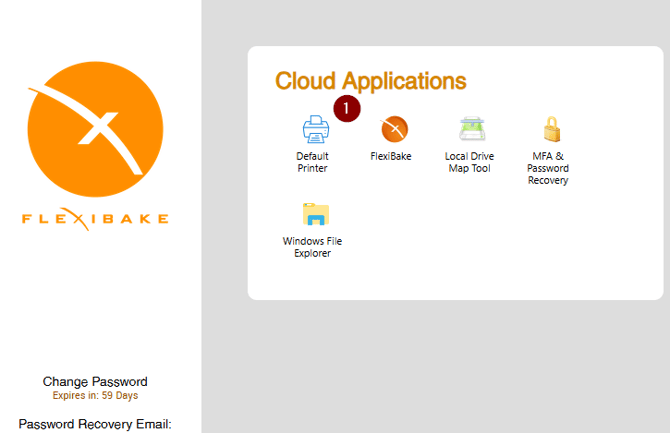
Step 2
Allow the connection to load and enter your password if prompted.
Step 3
Select the Default Printer Profile that matches your installation and printing needs.
Step 4
Click Apply to save the setting.
Step 5
If FlexiBake was already open, log out and disconnect from the RDP session before testing printing again.
Tip: After changing the printer profile, reconnect before running another print test.
When to Use Each Option
For standard document printing
Use TSPrint Default if you always print to the same local printer. Use TSPrint Printer if you need to choose from multiple printers or review printer settings before each job.
For label printing
Use None for label printing in FlexiBake. Printing Size and Orientation do not properly transfer through TSPrint.
Troubleshooting TSPrint Printing
The print job is going to the wrong printer
Check which printer profile is assigned to the seat first. If the seat is set to TSPrint Default, the job will go to the workstation’s local default printer. If you need to choose a printer manually, switch to TSPrint Printer instead.
TSPrint keeps becoming the default printer
TSPrint has both a per-user default printer setting and a server-wide default printer setting. If you want Windows to manage the default printer instead, select None in the TSPrint default printer setting.
Printing works, but margins or layout are off
If margins, fonts, or page layout are incorrect, change the Print Engine in TSPrint Client Options. TerminalWorks also recommends enabling FitToPage when correcting margin issues.
Local printer settings are not being respected
If the print job is ignoring settings such as orientation, check whether Map Settings is enabled in the TSPrint Client Options.
Fonts or print output look wrong
Try enabling Print as Image in TSPrint Client Options. This can help when fonts do not print correctly, although it may create larger print jobs and slower printing.
Documents are printing in the wrong order
Open the printer properties for the TSPrint printer being used and turn on Print spooled documents first on the Advanced tab. TerminalWorks recommends this when multiple documents print out of sequence.
TSPrint is not working at all
Confirm the TSPrint Client is installed on the computer you are printing from, then close all RDP sessions, reinstall or update the TSPrint Client if needed, reconnect, and try printing again. A TSPrint communication error can also appear if an interruption has occurred between the printer and server.