Replacing a user in Wizmo is done when you need to update the First and Last name of a user. This can be completed at any time during the month with no additional charge to the client.
To replace a user, follow the instructions below:
Step 1
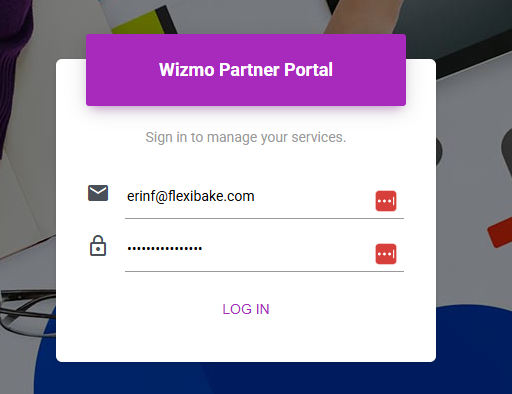
Navigate to https://portal.wizmo.com/Portal/Dashboard and login using your credentials.
Step 2
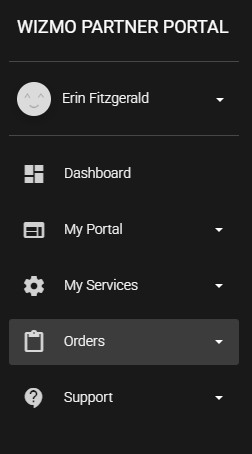
Within the left hand menu, click on Orders.
Step 3
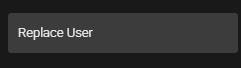
Click Replace User.
Step 4
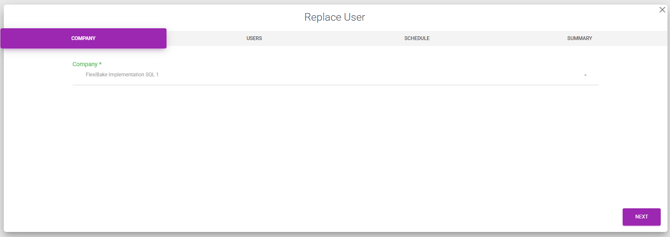
Choose the Company you want to replace the user for and click Next.
Step 5
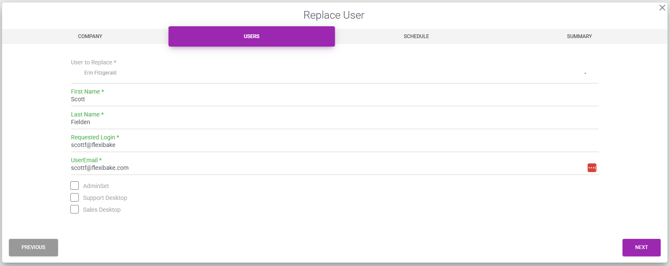
Select the User to Replace from the drop down. Fill out the new user's First Name and Last Name and provide the Requested Login and UserEmail (if the Login and Email are the same as before, just re-enter them). If this user is an Admin, check off AdminSet. Once all of the information is entered, press Next.
Step 6
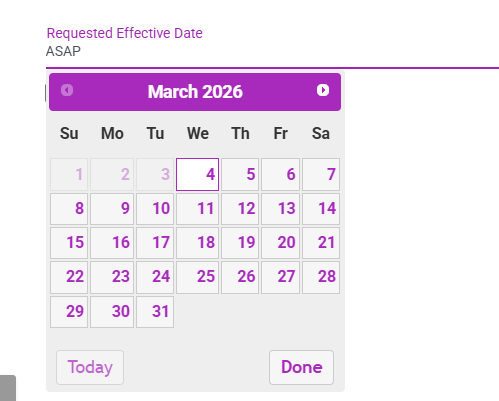
Select the Requested Effective Date that the user should be replaced. Click Next.
Step 7
Review the request and click Finish. The order will then be submitted to Wizmo. You will receive a confirmation Email when it is submitted and again once it is complete.
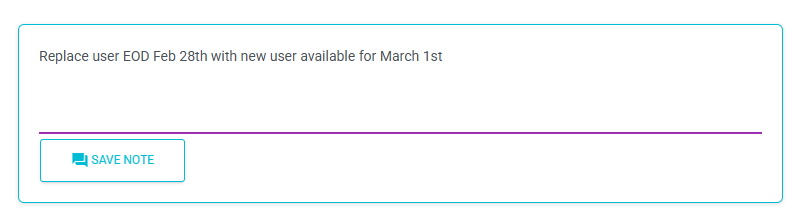
You can leave a note for Wizmo after the order is submitted with any special request. I.e. Replace the user EOD with the new user available for the next day.