
Overview
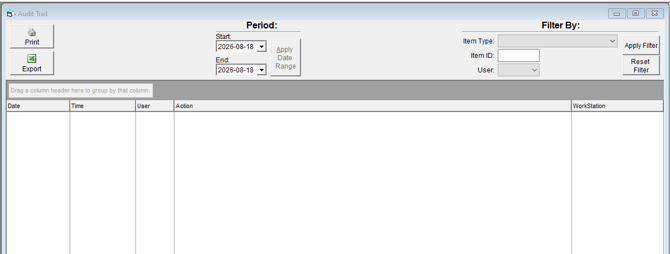
The Audit Trail helps you investigate the series of actions and events that a transaction has gone through in FlexiBake. If multiple users work in the database, Audit Trail records the user’s initials so you can identify who made the action.
When to use the Audit Trail
Use the Audit Trail when you need to:
- Confirm when a transaction was created or updated.
- Narrow your review to a specific date range.
- Check only one transaction type.
- Look up a transaction by number, reference, or amount.
- Review which user’s initials are attached to the recorded action.
Warning: If no filters are entered, FlexiBake can return all transactions in the database, which may slow the program due to the amount of data returned.
Before you begin
The Audit Trail must already be enabled before FlexiBake can record these actions.
Note: Older Audit Trail records may be removed automatically if the Purge [Audit Trail] after [ ] days preference is in use.
Open the Audit Trail search screen
Step 1
Navigate to Administration > View Audit Trail (Access to the Admisintration dropdown is locked to a users permissions in FlexiBake.
Filter by date range
Step 1
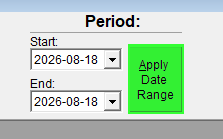
Click the Date From field and select the beginning date from the calendar.
Step 2
Click the Date To field and select the ending date from the calendar.
Step 3
Run the search to return only transactions within that date range.
Tip: Use a narrow date range first when investigating a specific issue. This keeps the results easier to review and reduces the number of unrelated transactions.
Example: Investigate a change made this week
Step 1
Enter the first day of the week in Date From.
Step 2
Enter today’s date in Date To.
Step 3
Review the returned transactions to isolate recent activity only.
Filter by transaction type
Step 1
Open the Item Type drop-down menu.
Step 2
Select the transaction type you want to review.
Step 3
Run the search to return only transactions that match that type.
Example: Review only one kind of transaction
Step 1
Select the relevant option from Item Type.
Step 2
Add a date range if needed to narrow the results further.
Step 3
Review the filtered list for only that transaction category.
Filter by transaction number
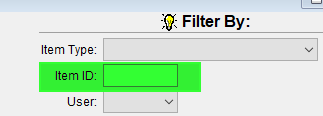
Enter a value in Item ID. if you know the exact transaction number. Only transactions matching that number will be returned.
Example: Find one transaction
Step 1
Enter the Item ID. (This might be a Sales Order Number, Route Delivery Slip Number or a Number associated with the transaction.
Step 2
Add Date From and To values if the reference may appear more than once.
Step 3
Review the filtered results to find the matching transaction.
Identify which user made the transaction
Step 1
Run your search using one or more of the available filters, such as Item Type, Item ID. or Date From / To.
Step 2
Review the resulting Audit Trail entries and look for the user’s initials recorded with the action.
Step 3
Match those initials to the user who made the transaction.
Note: The User will be listed by their FlexiBake login ID.
Example: Check who changed a transaction
Step 1
Search for the transaction using Item ID.
Step 2
Use Date From and Date To if you need to limit the result set to a shorter period.
Step 3
Review the returned entry and note the user’s initials recorded for the action.
Best practices
- Combine Item Type with a Date From / To range to narrow large searches.
- Use Item ID when you need the fastest way to find one exact transaction.
- Review retention settings if you need older Audit Trail history preserved.
Related articles
If Audit Trail is not recording activity yet, first enable it in FlexiBake Preferences.
- Enable the Audit Trail (https://support.flexibake.com/knowledge-base/enable-the-audit-trail)