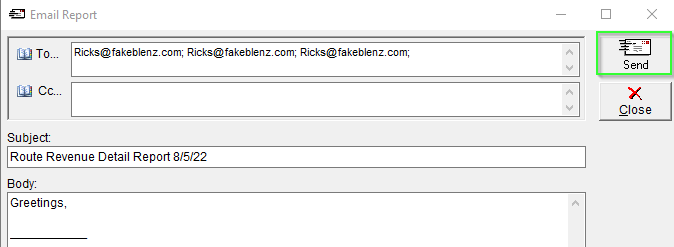
- Find a report/document that you would like to email and click the Email Report button in the top right corner.

- This will populate the Email Report screen. Click To.
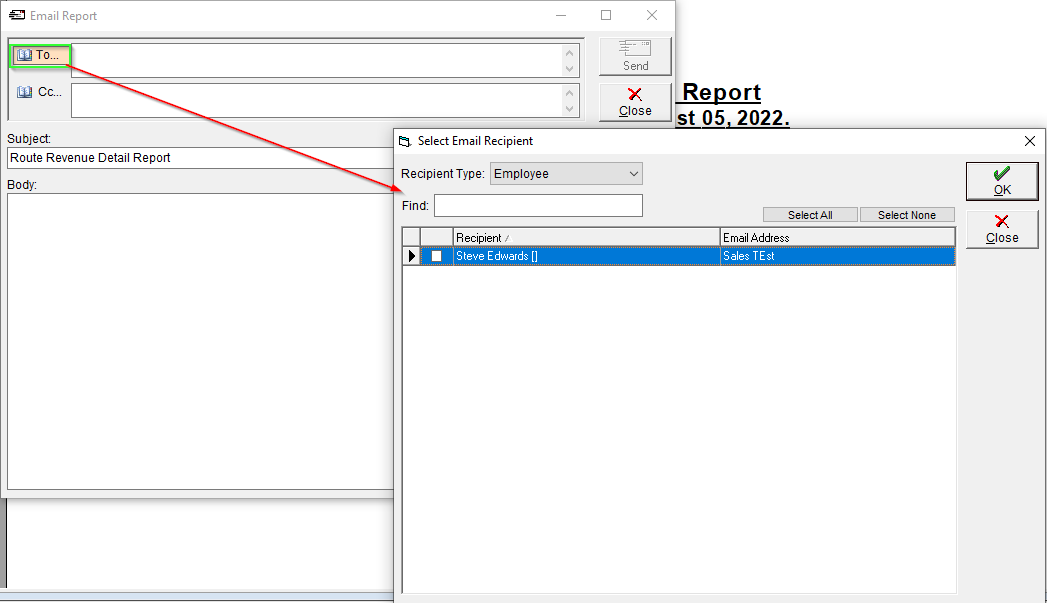
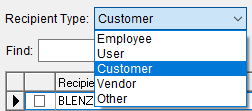
- Select the Recipient Type from the drop-down.
- If you have a lot of contacts, but know who you are looking for, you can begin typing the recipient's name in the Find field and the recipient will be subtly highlighted.
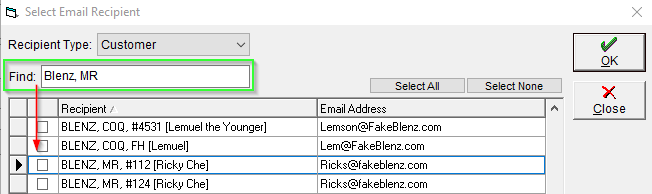
- Select your recipients by clicking the box to the left of the recipient name. This will place a check box in the box itself to indicate this recipient has been selected.
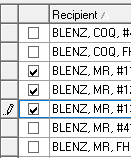
If you would like to select multiple contacts you can click Select All/Select None and then add or remove by (un)checking the boxes as required.
- Click OK in the top right corner to choose this recipient.
- This will return you to the initial screen. Update the email Subject and Body and then click Send in the top right corner.