
When to Use This Article
Use this article when:
- FlexiBake stops sending jobs to the printer
- printing works sometimes, then stops
- the printer does not appear after logging in
- a printer change does not apply
- printing fails after a disconnected session
Warning: If you change printer settings while FlexiBake is open, the change may not apply until you fully log out and reconnect.
Before You Troubleshoot
Confirm the printer works outside FlexiBake first. If the printer is offline or cannot print a local test page, resolve that issue before continuing.
Refresh the Printer Connection
Check the Printer and Reconnect FlexiBake
Step 1
Open the printer settings on the local computer, make sure the printer is powered on and available, then print a test page outside FlexiBake. (If unsure how to print a test page, contact your IT team for further assistance).
Step 2
Close FlexiBake, log out of the remote session completely, reconnect to your normal FlexiBake session, and try printing again.
Tip: If the printer does not work outside FlexiBake, the issue is not caused by FlexiBake.
Clear a Stuck Session
Use Session Logoff
If the session did not close properly, clear it before reconnecting.
Step 1
Go to cloud.flexibake.com, sign in with your FlexiBake seat credentials, and locate the Session Logoff utility.
Step 2
Download and open the Session Logoff file, wait for the old session to close, then reconnect using your normal FlexiBake session and test printing again. 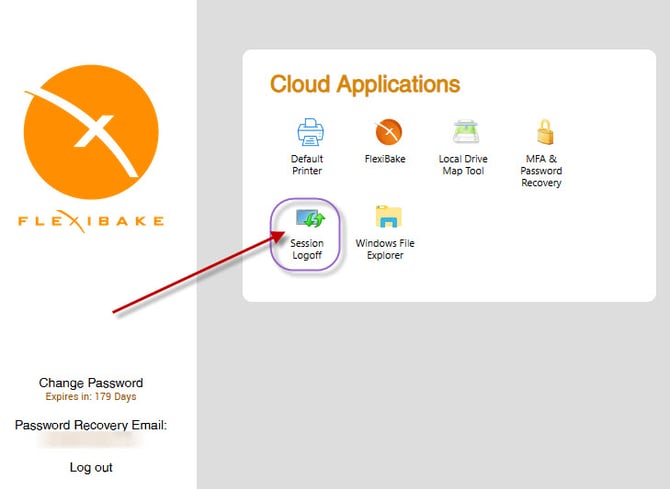
Note: Use Session Logoff when FlexiBake reconnects, but the printer still does not respond as expected.
Confirm the Default Printer Profile
Select the Correct Printer Profile
FlexiBake uses a default printer profile for each seat. If the wrong profile is selected, printer redirection may fail.
Step 1
Sign in to cloud.flexibake.com and open the Default Printer utility.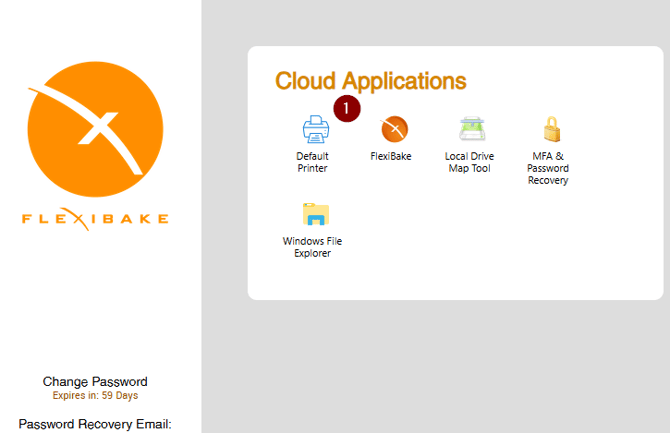
Step 2
Select the printer profile that matches the workstation setup, then click Apply.
In this situation you can either try TSPrint Default, or None. Try one at a time with a logoff in between each change.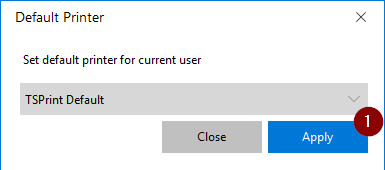
Step 3
Log out of the remote session, reconnect to FlexiBake, and run a test print.
Warning: Do not test printing until after you reconnect.
When to Escalate the Issue
Signs the Problem Is Outside FlexiBake
Escalate the issue if:
- the printer is unavailable on the local computer
- the printer does not print a local test page
- the remote session reconnects but no printer is redirected
- Session Logoff and reconnecting do not fix the issue
- the issue appears to be caused by printer drivers, Windows settings, or third-party printing software
Related Articles:
- Session Logoff - Force a session to logoff (https://support.flexibake.com/knowledge-base/session-logoff-force-a-session-to-logoff)
- Set your Default Printer Profile for FlexiBake 2019 (https://support.flexibake.com/knowledge-base/set-your-default-printer-profile-for-flexibake-2019)