When the time comes to move your transactions from FlexiBake to QuickBooks Online, it's a simple process with the direct FlexiBake-QuickBooks Online integration. This guide will take you through how to get those transactions moving!
Before you begin, make sure that you have followed the setup guide to connect FlexiBake to your QuickBooks Online and configure preferences as desired
If you have been using FlexiBake for a while with another accounting export or exporting to QuickBooks Online using the CSV export, you may see old transactions that have not been marked as exported. Please contact our support team at support@flexibake.com and ask to have transactions up to a certain date set as exported to prevent the sync from sending them to QuickBooks Online.
Step 1
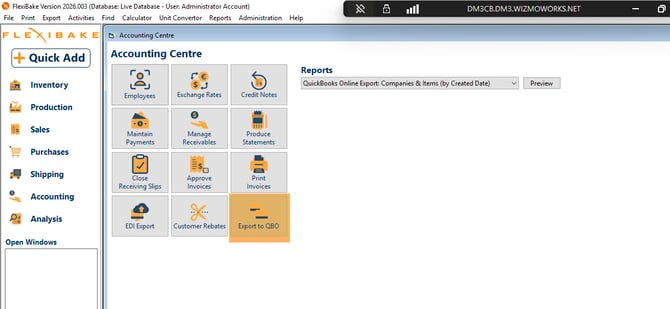
In the Accounting Centre, click Export to QBO.
Step 2
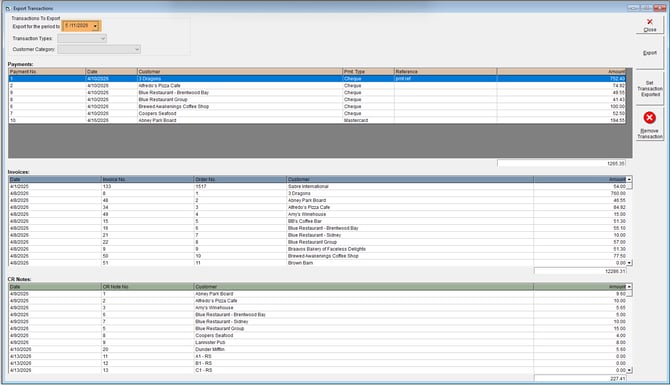
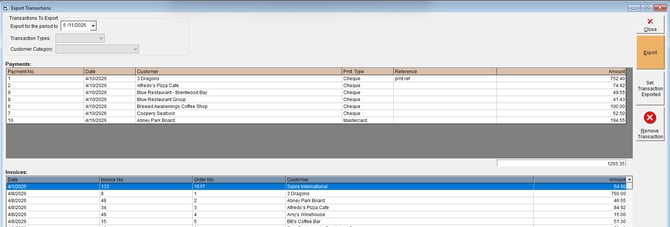
Select the desired date. All unexported transactions up to and including this date will be listed in the grids.
Step 3
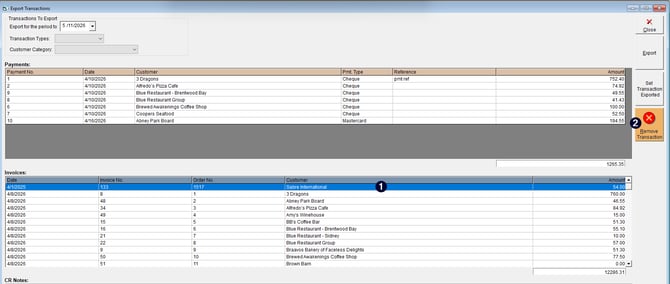
To exclude a transaction from the current export, click to highlight it and then select Remove Transaction. The excluded transaction remains available for export in the future.
Step 4
Click Export to continue.
Step 5
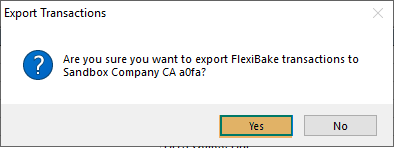
A pop-up window will appear confirming the QuickBooks Online account you are exporting to. Carefully check the name of the linked QuickBooks company. Click Yes to proceed.
Step 6
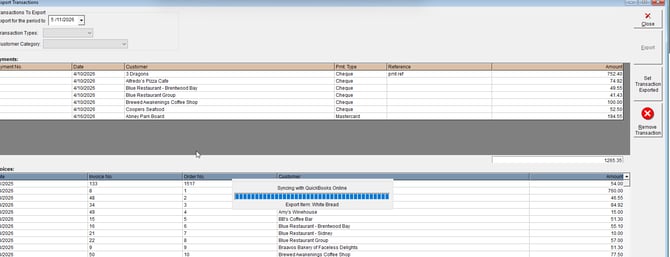
FlexiBake will sync any new customers, products, payment terms, and the selected transactions with QuickBooks Online. A progress window will appear indicating the records being synced.
Step 7
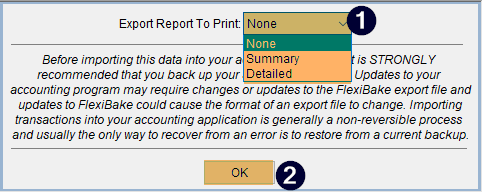
After the sync, a pop-up will appear. Select the preferred format for your export report and click OK to finish.
Please note: Credit Notes and Payments that have not been fully applied will not be marked as exported so that FlexiBake can update them in QuickBooks Online as the outstanding balance is applied.
A list of these credits and payments will be displayed once the sync has completed.