
Plan Production is designed to give you instant access to a wide range of reports, including Baker’s Sheets, Detailed Production Sheets, and Products Required. All reports can be printed or emailed. This streamlines communication and ensures teams have what they need for every bake
Planning and Scheduling Production
Preparation and Entry
Step 1
-
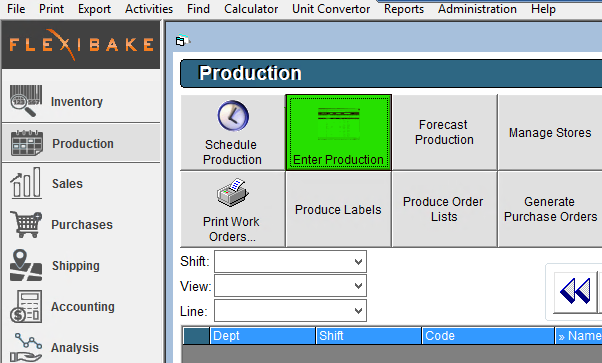
Go to the Production Centre and select Enter Production.
Step 2
-
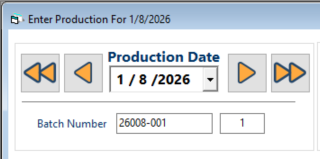
Select your desired Production Date. Make sure to account for any product lead times by ensuring items have appropriate lead times set in the Inventory Centre
Step 3
-
Enter your planned production quantities for each item. Click OK to confirm and schedule the production run.
Step 4
-
Once scheduled, the Plan Production option will become available, “unlocking” reporting tools based on your confirmed production numbers.
Generating and Configuring Reports with Plan Production
Tip: Recipes should have divider details, lead times, and other attributes configured for best results in reporting. The columns for pieces per stroke, full strokes, and hand divide reflect setup data, but you can edit these fields directly if needed
Step 5
-
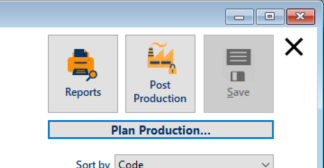
Click the Plan Production button to open the reporting screen.
Step 6
-
Review the displayed grid showing your recipes, total quantities, and production details for the selected date.

Step 7
-
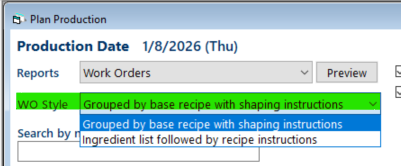
Select your preferred Work Order Style using the dropdown at the top, if you’re issuing work orders.
Step 8
Choose and generate the desired reports:
- Baker’s Sheet: Organized by department, shows what needs to be made by who.
- Detailed Production Sheet: Breaks down all recipe process steps.
- Products Required: Lists all finished products to be made.
- Divider/Cut Master: Includes cutting or divider instructions, if configured in the recipe
Step 9
-
Print, export, or email reports using the buttons at the top of the report window.

Tip: Click the “Display Bakers Percentage on Work Instructions” checkbox if your team works with baker’s percentages. The resulting work order will include baker’s percentage columns for each ingredient
Additional Settings and Options
Ignore Shipped Quantities
Check the Ignore shipped quantities box if you are scheduling additional runs partway through a day, but want previously shipped quantities included in your planning. This keeps inventory levels and planning accurate for multiple batches in a single day
Update Column Views
- If columns are misaligned or missing, click Reset Column Order/Width found in the bottom-right of Plan Production.
- To hide columns, right-click the column heading, uncheck unwanted fields, and right-click again to close.
- Adjust grid to focus only on the details your team uses most often for prepping or scaling
Automated Production Equipment
If working with automated lines or specific dividers, populate the pieces per stroke, full strokes, or hand divide columns in your recipe setup under Set Recipes Divider Details within the Inventory Centre for optimal work instruction reporting.
Tip: Setting accurate divider and scaling details in the recipe ensures that generated work orders and summary sheets are precise and tailored to your process.