
Why Use Price Tiers?
Using price tiers helps you manage special pricing for groups like high-volume buyers or charitable organizations. Assigning the appropriate tier ensures the right prices are automatically applied to customer orders.
Note: Customers may only be assigned one Price Tier at a time. If no tier is assigned, the standard product price will apply. For help with tier setup, see Create Price Tiers and Set Product Prices Within a Price Tier.
Assigning a Price Tier
Preparation
- Ensure your price tiers are already created and populated with appropriate prices.
- Make sure the customer is already created in FlexiBake.
Assign a Price Tier
Step 1
Go to the Sales Centre and navigate to Maintain Customers.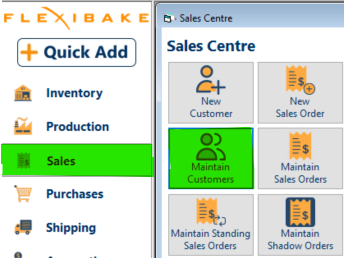
Step 2
Select or search for the customer you want to assign to a price tier.
Step 3
Open the customer record and locate the Price Tier drop-down field within the Billing Details tab.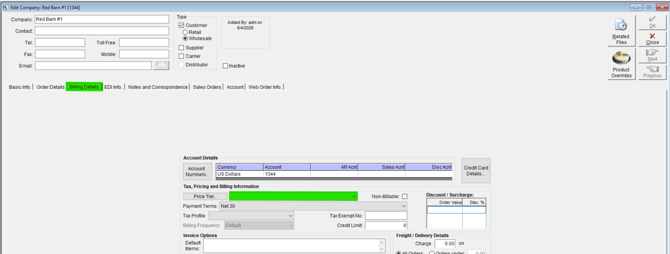
Step 4
Choose the desired Price Tier from the drop-down list.
Step 5
Click OK to confirm the assignment.
Tip: After assignment, all future orders for that customer will automatically use the prices associated with their selected Price Tier.
Related Reports and Articles
Use the Customer Price Tier Detail Report to verify assignments and review detailed pricing for each customer. Find it under: Reports > Customers > Customer Price Tier Detail.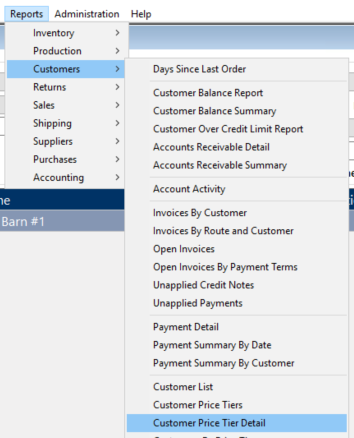
For more information on creating Price Tiers see the following articles:
A video walkthrough on assigning a price tier to a customer is available to view below: