
Login issues in the Online Ordering Portal are often caused by one of the following:
- The username or password was entered incorrectly.
- The browser is using outdated cookies or cached website files.
- The user is signing in from a saved bookmark or page that no longer reflects the current session.
- The account setup should be reviewed in Web Order Info.
Warning: Clearing cookies or website data may sign the user out of other websites and remove saved site preferences in that browser.
Check Login Details First
Step 1
Open the Online Ordering Portal login page and confirm the customer is using the correct portal link provided by your company.
Note: This is provisioned during setup and acts as a domain for the connection, for example: bakery.flexibakeonline.com.
Step 2
Ask the customer to manually enter their User ID and Password instead of relying on autofill.
Tip: Saved passwords in the browser can be outdated. Manually typing the login details helps confirm whether the stored browser data is part of the problem.
Step 3
Confirm that the customer has a valid User ID and Password set up in Web Order Info.
Review Account Setup
Step 1
Open the customer record in FlexiBake and go to the Web Order Info tab.
Step 2
Confirm the User ID is entered correctly and matches what the customer is using to sign in.
Step 3
Review the saved Password and update it if your internal support process requires it.
Step 4
Click OK to save any changes.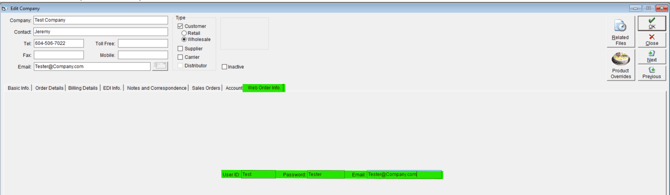
Reset Browser Cache and Cookies
Step 1
Close the Online Ordering Portal tab.
Step 2
Clear cookies and cached website files in the browser the customer is using.
Step 3
Open a new browser window and return to the portal login page.
Step 4
Enter the User ID and Password again and test the login.
Tip: If the portal opens correctly in a private or incognito window, the issue is likely related to cached browser data or cookies in the regular browser session.
Clear Cache in Google Chrome
Step 1
Open Google Chrome.
Step 2
Click More in the top-right corner, then click Delete browsing data.
Step 3
Set the time range to All time when a full reset is needed, or choose a shorter range if appropriate.
Step 4
Select Cookies and other site data and Cached images and files.
Step 5
Click Delete data.
Clear Cache in Microsoft Edge
Step 1
Open Microsoft Edge.
Step 2
Click Settings and more, then go to Settings > Privacy, search, and services.
Step 3
In Clear browsing data, click Choose what to clear.
Step 4
Select the time range that fits the issue.
Step 5
Select Cookies and other site data and Cached images and files.
Step 6
Click Clear now.
Clear Cache in Mozilla Firefox
Step 1
Open Mozilla Firefox.
Step 2
Open the application menu and go to Settings.
Step 3
Open the Privacy & Security section.
Step 4
In Cookies and Site Data, click Clear Data.
Step 5
Select Cookies and Site Data and Temporary Cached Files and Pages.
Step 6
Click Clear.
Clear Cache in Safari on Mac
Step 1
Open Safari.
Step 2
Click Safari > Settings, then open the Privacy tab.
Step 3
Click Manage Website Data.
Step 4
Select the affected portal website, then click Remove. To clear all stored website data, click Remove All.
Step 5
Reopen the portal login page and test the sign-in again.
Note: In Safari, clearing website data may change saved website behavior in other apps connected to Safari data.
Additional Troubleshooting
Step 1
Use Login Help and "click here" to reset your login account settings and try again.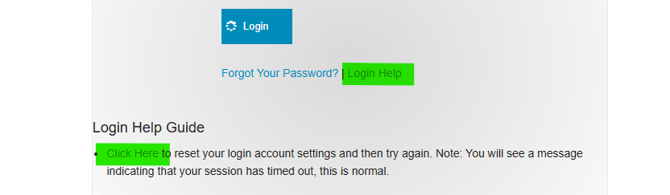
Step 2
Test the login in a private or incognito browser window.
Step 3
Try a different supported web browser if the issue continues.
Step 4
Ask the customer to reload the page after clearing browser data.
Step 5
If the issue still continues, collect the exact error message, the browser name, and whether the problem affects one user or multiple users before escalating to Support.
Related Information
Customer User Names and Passwords:
If you need to set up customer usernames and passwords, you can do this in FlexiBake via Set up Customer Usernames and Passwords for the Online Ordering Portal.
Portal Administrators Login Help:
If a Portal Administrator cannot access the admin page, they may reset their password Change a Portal Administrators Password.