
If you have multiple staff members using FlexiBake to send emails, you might wants certain emails to appear as being sent by certain email addresses, like having Purchase Orders sent from purchasing, and statements sent from accounts. This feature allows emails to be sent from each user’s own address rather than the global email account set in General Preferences.
Warning: The user’s email domain must match the SMTP server domain configured in General Preferences. For example, if the provider is Gmail, only @gmail.com addresses or linked workgroup accounts can be used. Contact your IT team if using a private or Exchange mail server.
Step 1
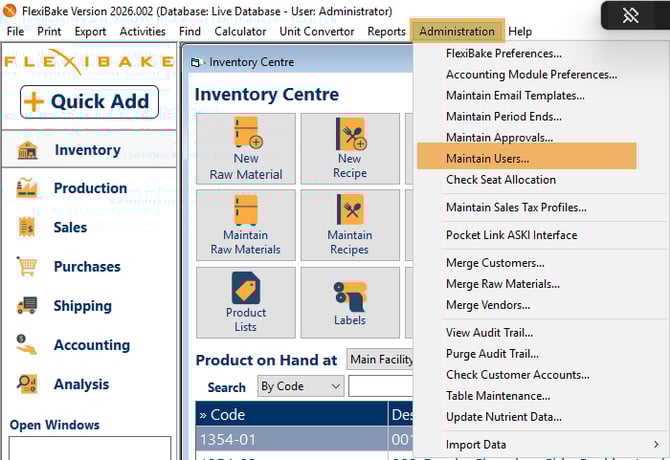
From the top menu bar, select Administration and then Maintain Users.
Step 2
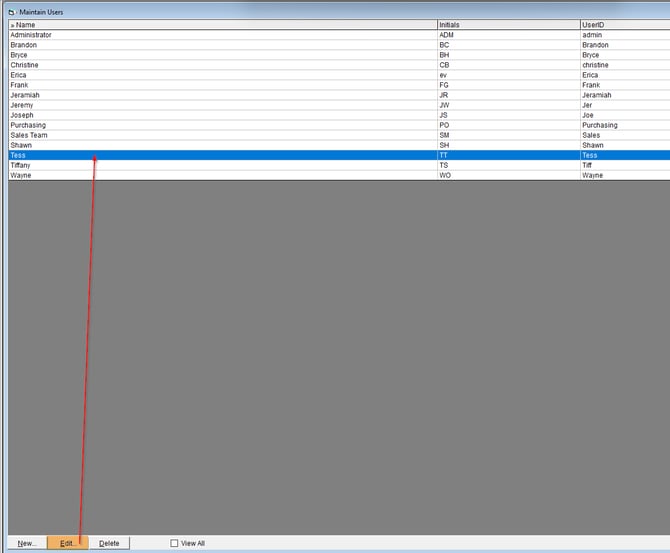
Select the user whose SMTP settings you wish to modify, then press Edit or double-click on it to open the user profile.
Step 3
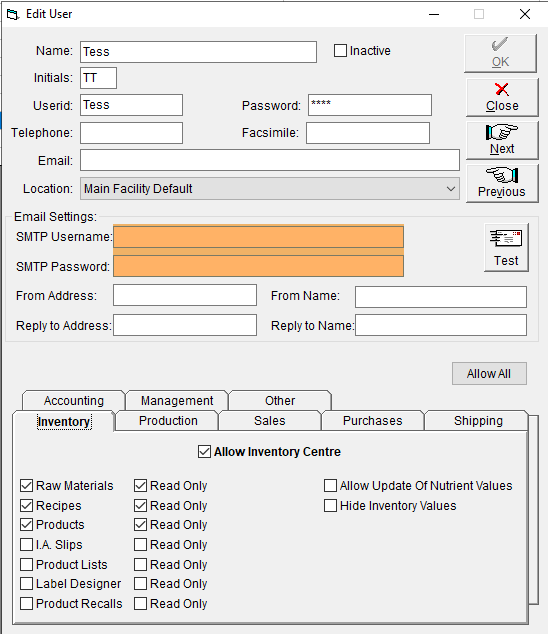
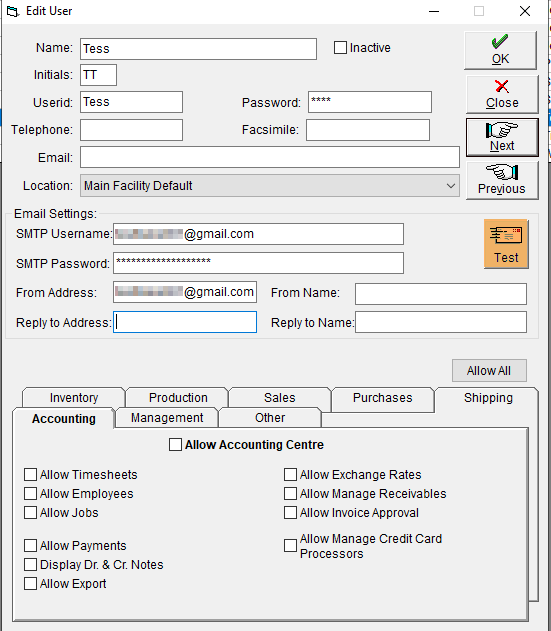
Enter the Username and Password in the appropriate fields.
Generally the username will be the email address you wish to use, but some services like SendGrid may use a non-email username to connect.
Step 4
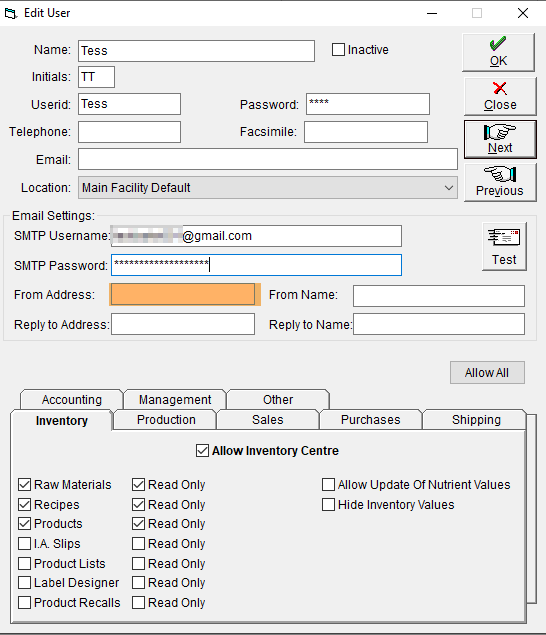
Add a From Address. This will appear as the sender's email address on email sent by this user. This can be the same as the email in the Username but does not have to be.
Depending on your email provider/email settings, a different From Address may not be accepted, and the email address in the Username used instead. In this case, enter the same email in the From Address and the Username fields.
You can also optionally add the following information:
- From Name - The name you would like to have appear as the sender
- Reply to Address - This optional field allows you to set a different email that will be used if the recipient replies to an email sent from FlexiBake. You may wish to use this if you're using a no-reply address and would like to direct any responses to your order desk.
- Reply to Name - The name that will be used for the Reply To.
Step 5
Press Test to confirm the credentials work with your email provider.
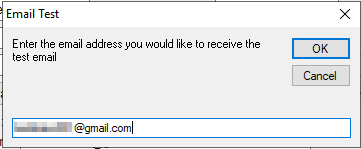
A prompt will appear to ask which email address you would like to send a test email to, enter one then click OK.
Step 6
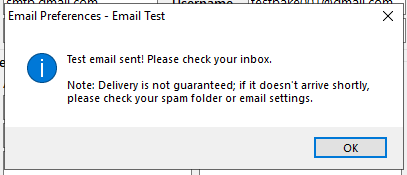
A prompt will let you know that the test email has been sent successfully.
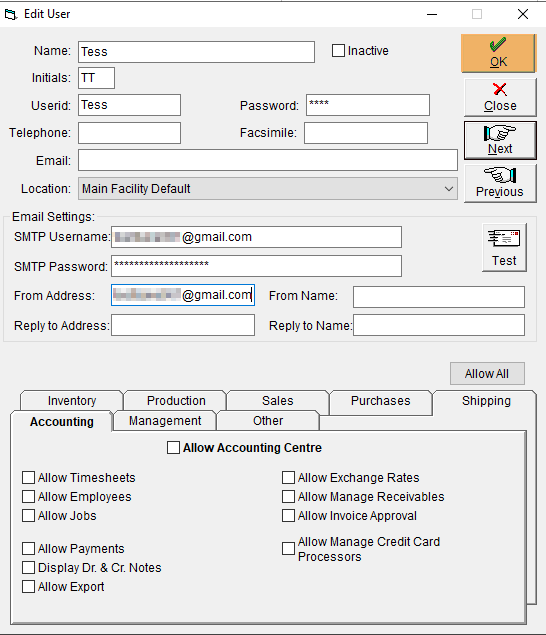
Once you've received the test email, press OK to save changes.
If you do not receive a success message, check that the user’s domain matches the SMTP settings in FlexiBake Preferences, and ensure the credentials are correct.
Tip: For detailed steps on generating app passwords for Gmail, see SMTP Settings – Google App Passwords.
For more on the global/default SMTP email setup, see SMTP Email Setup.