
Overview
What a Product Lead Time does
A Product Lead Time tells FlexiBake how many days are required for a product to move through production before it is ready. This lead time is measured in days and is used to help FlexiBake determine when the product should appear in production-related workflows.
Why this matters
Use Product Lead Times when:
- A product must be made ahead of delivery.
- Production needs to begin before the ship or delivery date.
- You want Enter Production, scheduling tools, and related production reports to reflect the correct timing.
- You want FlexiBake to warn users when a Sales Order is placed too close to the requested delivery date.
Before You Begin
Confirm the product requires advance production time
Before setting a Product Lead Time, decide how far in advance the product must be started so it is ready on time.
Examples:
- A product made and shipped the next day may use a 1-day lead time.
- A product that needs two full production days before delivery may use a 2-day lead time.
Note: Product Lead Time is measured in relation to the product and delivery timing, not the time needed for each component recipe. If component recipes also need to start early, use Recipe Lead Times as well.
Set the Product Lead Time
Update the product record
Step 1
Open the Inventory Centre and click Maintain Products.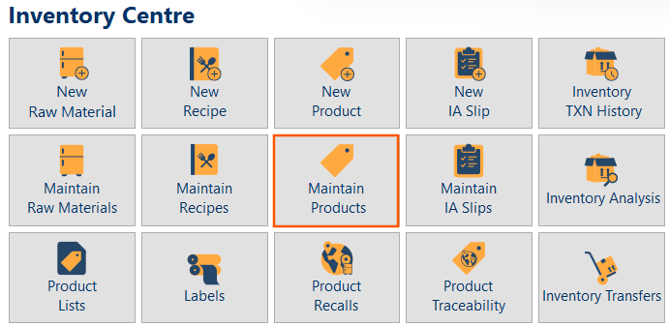
Step 2
Find the product you want to update, then double click it or click it once and select Edit.
Step 3
Click the Production tab.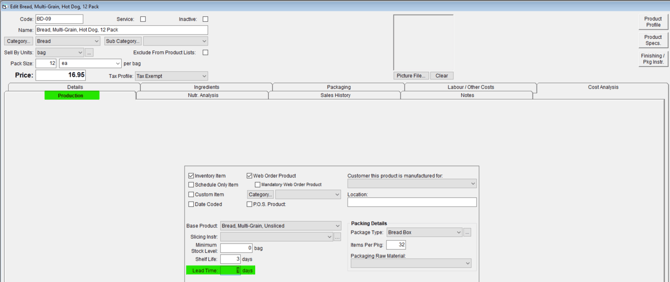
Step 4
Enter the required number of days in the Lead Time field.
Step 5
Click OK to save the product.
How Product Lead Time Works
Lead time is measured in days
A Product Lead Time is the amount of time required for the item to move through production from start to finish.
Example
A 1-day Product Lead Time means the product can be ordered today and be available for delivery tomorrow. A 2-day Product Lead Time means the product will be available the day after tomorrow.
What FlexiBake does with the lead time
Once the Product Lead Time has been set, FlexiBake factors it into production and sales-related processes.
- A product with a 2-day lead time will appear in Enter Production two days before the scheduled ship date.
- The lead time will also affect when products are displayed on certain production reports.
- On Sales Orders, FlexiBake uses orange text to warn users when the time remaining until delivery is shorter than the lead time.
- In the Online Ordering Portal, ordering can be blocked if the product lead time is longer than the time remaining before the selected delivery date.
Tip: If users are seeing colored warnings on Sales Orders for a product, review the Product Lead Time first.
Related Preference: Assume Production and Delivery Dates Are the Same
How this preference changes lead times
The Assume production and delivery dates are the same preference changes how FlexiBake interprets product lead times. When this setting is enabled, FlexiBake treats the delivery day as a valid production day and effectively reduces the product lead time by one day.
Examples:
- A 1-day Product Lead Time behaves like 0 days
- A 2-day Product Lead Time behaves like 1 day
When to use this preference
If products are produced on the same day they are delivered, this preference can help align the production schedule more closely to that workflow. For example, the current guidance recommends using a 1-day lead time and enabling this preference when items are produced on the same day as delivery.
Warning: If your products are appearing a day earlier or later than expected, check whether Assume production and delivery dates are the same is enabled.
Product Lead Time in Production Workflows
Enter Production
Products populate on the Enter Production screen based on the Ship Date of the Sales Order minus the product lead time.
Schedule Production and related planning
Product Lead Times are also considered in production planning and analysis. If required quantities or production timing appear incorrect, review both the Product Lead Time and the related production preferences.
Note: If the product is marked as Schedule Only, it may not appear in Enter Production even if the lead time is correct.
Troubleshooting
The product is appearing on the wrong day
If the product is appearing earlier or later than expected, review the Lead Time field on the product record and update it if needed.
The lead time is different than expected
If the timing seems off by one day, check the Assume production and delivery dates are the same preference. This setting effectively reduces product lead times by one day.
The product is not appearing in Enter Production
If the Product Lead Time is correct but the product is still not appearing as expected, review whether:
- the product is marked as Schedule Only
- the product is Inactive
- the product is assigned to a different production facility
Tip: If products are not appearing as expected in Enter Production, review the troubleshooting article for products on order not appearing in production.
Other product and production setup options
You may also want to review these related setup tasks: