
If you're an American company , you may be charging sales tax to some or all of your customers. This guide will take you through how to set up FlexiBake's taxes so that they match QuickBooks Online's requirements so they flow through seamlessly.
Create Tax Profiles in FlexiBake
Step 1
Log into FlexiBake as a user with Administrator permissions.
Step 2
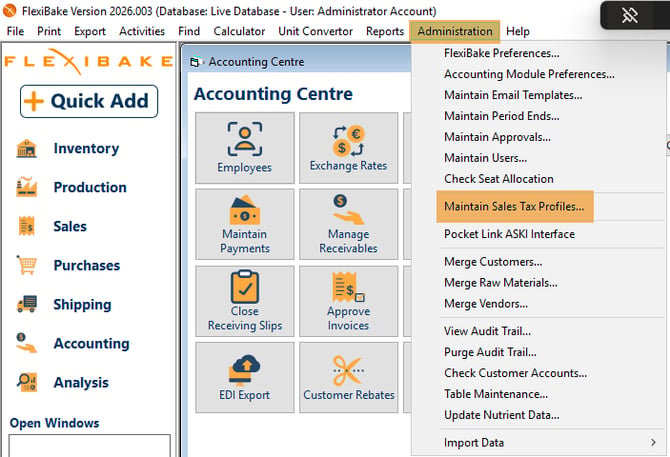
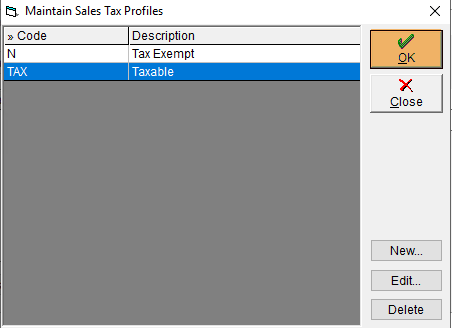
In the upper menu bar, open the Administration menu and select Maintain Sales Tax Profiles
Step 3
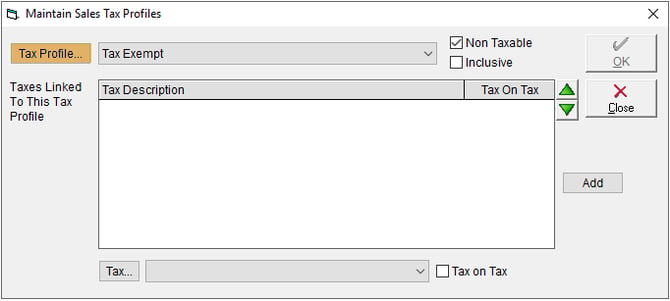
In the pop-up window, click the Tax Profile… button in the top left corner.
Step 4
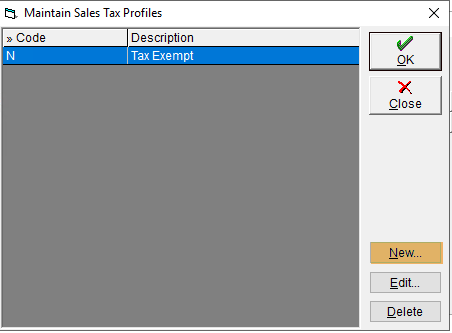
A second window will open. Select the New button to begin creating a profile.
Step 5
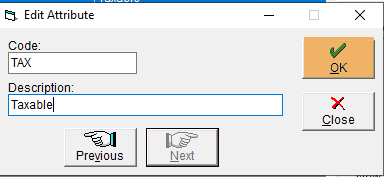
Enter a Code and Description for your tax profile.
Due to the complexity of tax application in some areas, QuickBooks Online offers the option to auto-calculate the applicable taxes for a transaction based on the customer's shipping address. If you plan to take advantage of this feature, please note that you will not have accurate tax calculations in FlexiBake.
In this case, you will need only 2 tax profiles: one with code "NON" for non-taxable, and one with code "TAX" for taxable
If you would like to have sales taxes defined in FlexiBake so that it appears on invoices and credits and you can take advantage of the sales tax reports, you'll need to define custom tax codes in QuickBooks Online and create a corresponding tax profile in FlexiBake. The Tax Profile Code must match the name of the tax in QuickBooks Online for the data to flow through.
Click OK in both windows to save the record and return to the previous screen.
Step 6
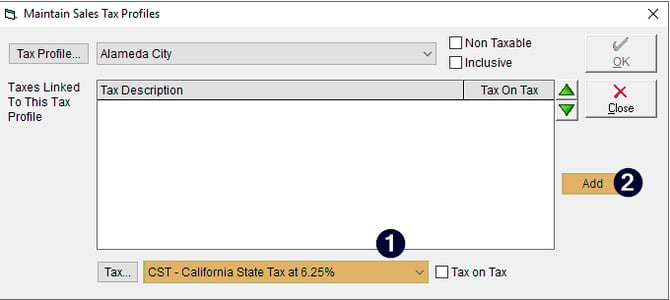
If you've opted to use custom tax rate in QuickBooks Online, you'll want to assign the taxes that apply to the tax profile.
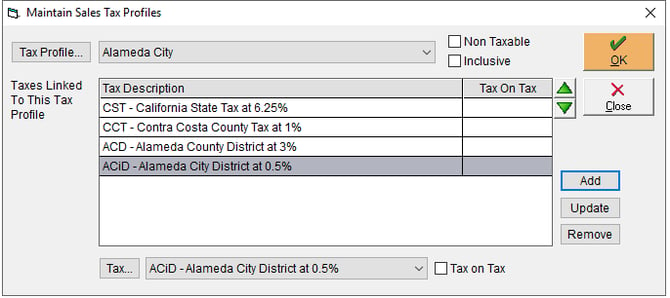
At the bottom of the screen, assign individual taxes to your Tax Profile by clicking the drop-down next to the Tax… button. Click Add to link the selected tax, then click OK to save. To make new tax rates, please see Set Up Sales Tax Rates.
Step 7
Click OK to save your changes
Assign Tax Profiles
Next, you'll want to assign taxes as required by following the guides below:
Please note that customers marked as tax exempt require a reason for this exemption. By default, FlexiBake will set this reason to 'Resale', and you will need update this reason as required in QuickBooks Online.
- Assign Sales Tax Profile to Freight/Delivery Charges
- Assign Sales Tax Profiles to Freight/Delivery Charges for Specific Customers
How do these taxes interact? Check out our troubleshooting article here to learn more about how FlexiBake applies taxes.
Tax and Mapped Items
If you have defined mapped items for Surcharges, Prompt Payment Discounts and/or Finance Charges, then you'll need to mark those mapped items as tax exempt in QuickBooks Online. QuickBooks requires that these items are mapped to a tax code when adding them to an invoice, but in FlexiBake these are not taxable line items.