
Overview
What a product is used for
Products sit at the center of many workflows in FlexiBake. Once created, they can be used to:
- Track Sales through Sales Orders
- Be produced through Production
- Be shipped to customers
- Be tracked through Traceability
Why this matters
Creating the product record is the first step in making that item available for use throughout FlexiBake. After the product has been created, you can continue setting it up for inventory, production, ordering, and shipments.
Before You Begin
Gather the basic product details
Before creating the product, confirm the key details you want to use for the record, such as:
- The product name
- The sell-by unit
- Whether the product will be produced, stocked, or sold
- Whether the product needs a linked recipe or other setup after creation
Tip: If you already know the product will need production planning, inventory tracking, or online ordering, it can save time to plan those related settings before creating a large group of products.
Create the Product Record
Add a new product in Maintain Products
Step 1
Open the Inventory Centre and click Maintain Products.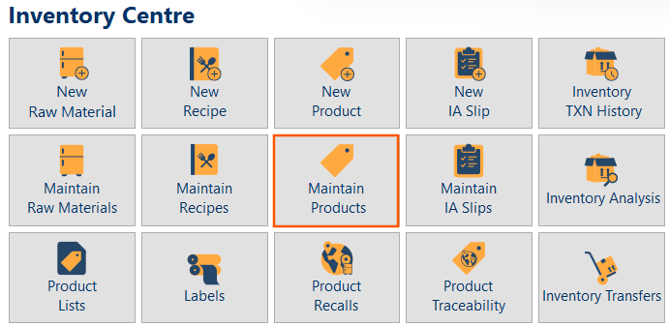
Step 2
Click New to create a new product record.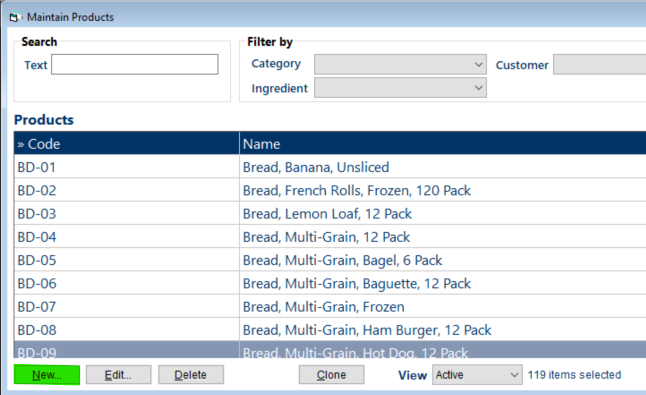
Step 3
Enter the required product details on the product record.
- Product Code
- Product Name
- Product Category
- Product Sell by Units
Step 4
Review the available tabs and complete the sections that apply to how the product will be used in your operation.
- Ingredients
- Production
- Nutritional
- Labour / Other Costs
Step 5
Click OK to save the product.
Product Setup Areas to Review
Ingredients
Use the Ingredients tab when the product needs linked recipes or Raw Materials, or when Batch Time and Product Batch Size need to be defined.
Production
Use the Production tab for settings such as Product Lead Time, Inventory Item, Schedule Only, Base Product and Slicing Options and other production-related controls.
Nutritional and additional setup
Some products may also need further setup for nutritional information, labeling, online ordering, or related operational needs after the main product record is created.
Tip: It is often easier to create the product first, then complete the specialized tabs once the product’s intended use is confirmed.
Common Next Steps After Creating a Product
Link a recipe if the product is produced
If the product is made in-house, the next step is often to link the recipe that produces it. This helps connect the finished product to the ingredients or recipe structure used in production.
Set Product Batch Size
If the product is produced in batches, set the Product Batch Size so FlexiBake can understand how many sell-by units one full batch creates.
Set Product Lead Time
If the product needs to be made ahead of delivery, set the Product Lead Time so production tools and ordering workflows reflect the time required.
Mark the product as an Inventory Item
If the product will be kept in stock, mark it as an Inventory Item so it can be tracked more naturally through inventory workflows.
Set product availability
If the product should only be available on certain days or in certain contexts, review its availability settings after creation.
Clone a related Product
if you have products that are similar, you can clone a product then simply make changes. This minimizes the amount of data you need to enter for the new product.
Clone a Product Video:
Troubleshooting
The product is not appearing where expected
If the product does not appear in the workflow or report you expect, review the related product setup.
- For Production, check whether the product is Inactive, marked as Schedule Only, or missing production-related setup.
- For Inventory, check whether the product is marked as an Inventory Item. If not, you may need to display non-inventory items to see it.
- For Slicing Reports, confirm the product has Slicing Instructions assigned.
- For Base Product Reports, confirm the correct Base Product has been assigned on the Production tab.
Tip: A newly created product often needs additional setup before it will appear in every workflow or report.
Product setup articles
You may also want to review these related setup tasks after creating the product: